
Amazon QuickSight Integration
Integration of Amazon QuickSight with Entropy Data.
The Amazon QuickSight integration is experimental and under active development. The current version imports data sources and datasets. Dashboards, analyses, and lineage are planned for upcoming releases.
The Amazon QuickSight integration is managed within Entropy Data. Configure the connection and sync schedule to start syncing with Amazon QuickSight.
No additional deployments are needed.
Features
- Asset Synchronization: Sync QuickSight data sources and datasets (including dataset columns) to Entropy Data as Assets.
Planned for future releases: dashboards and analyses, and lineage between datasets, data sources, and physical tables.
Prerequisites
The AWS account must be subscribed to Amazon QuickSight in the region you want to synchronize.
To start, navigate to Settings > Integrations > Add Integration.
This opens a wizard that guides you through configuring the integration.
Configuration
Select the Integration Type
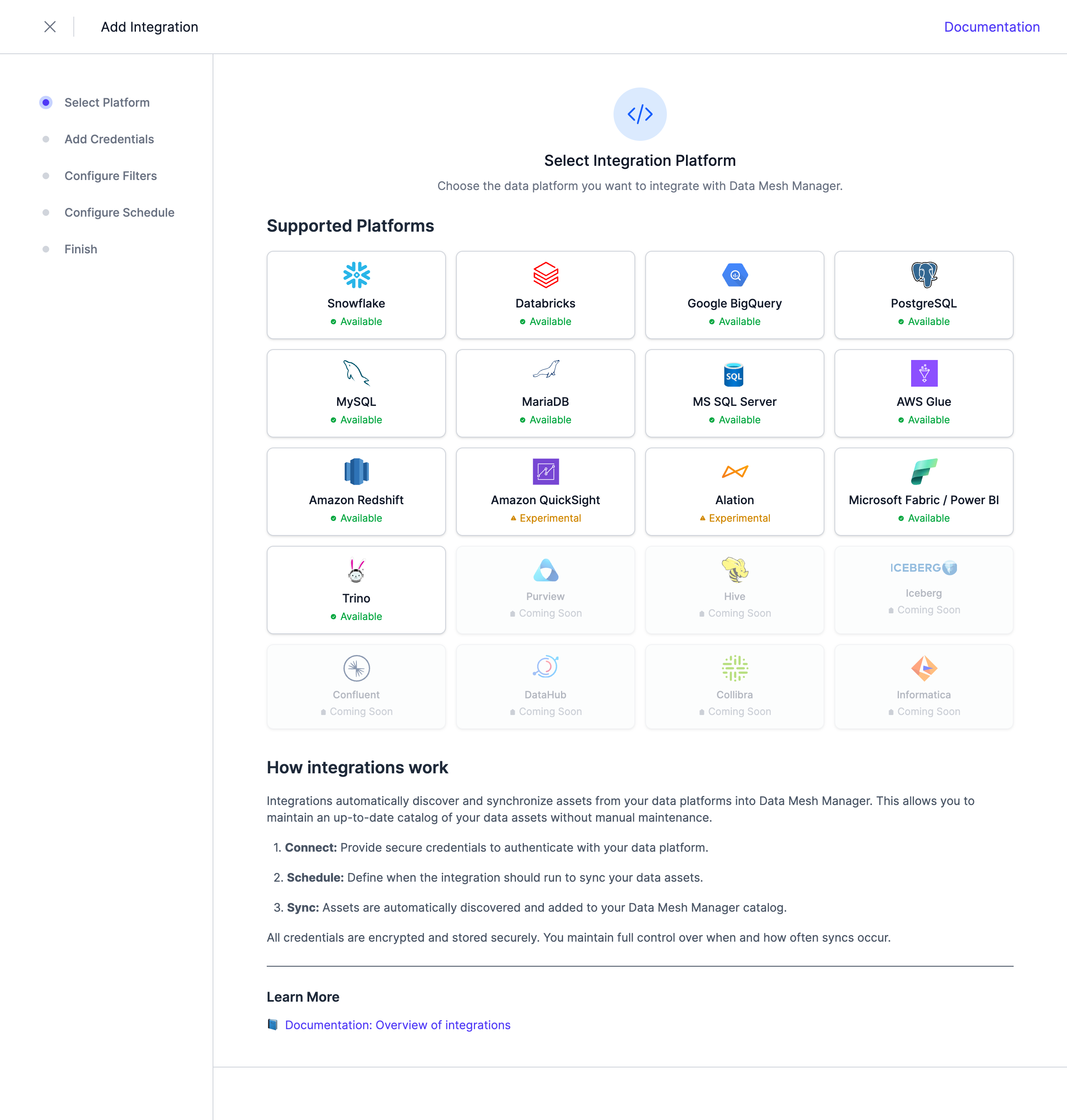 Select Amazon QuickSight from the list of available integrations.
Configure the Credentials
QuickSight is a regional service, so the integration reads assets from a single AWS account and region using the QuickSight management API with IAM-based authentication. Two authentication methods are supported:
- Cross-account IAM role (recommended). Entropy Data assumes a role you create in your AWS account. A per-integration External ID is generated and shown in the wizard — add it as the
sts:ExternalIdcondition in the role's trust policy so only your integration can assume the role. No long-lived secret leaves your account. This method requires Entropy Data to be configured with an AWS identity on the server side; if it is not, the wizard shows a note and you can use access keys instead. See the AWS documentation on granting access to third parties. - IAM user access keys. Provide an Access Key ID and Secret Access Key for an IAM identity in your account. Refer to the AWS documentation for creating a new access key. While creating the access key, select the use case 'Other'.
The IAM role or user needs read-only permissions on the QuickSight management API. You may use the following AWS policy to grant them:
{
    "Version": "2012-10-17",
    "Statement": [
        {
            "Effect": "Allow",
            "Action": [
                "quicksight:ListDataSets",
                "quicksight:DescribeDataSet"
            ],
            "Resource": "*"
        }
    ]
}
Provide the following connection details:
| Parameter | Description |
|---|---|
| AWS Account ID | The 12-digit AWS account ID that owns the QuickSight assets |
| AWS Region | The AWS region your QuickSight account runs in (e.g., us-east-1, eu-central-1) |
| Role ARN | (Cross-account role) The IAM role Entropy Data assumes to read your metadata |
| External ID | (Cross-account role) Generated for this integration — add it to the role's trust policy |
| AWS Access Key ID | (IAM user) The IAM access key ID (starts with AKIA) |
| AWS Secret Access Key | (IAM user) The corresponding secret access key |
Note: Credentials are stored encrypted in the Entropy Data database. To enable encryption in your environment, set a 64 hex character
APPLICATION_ENCRYPTION_KEYSin your environment (see Configuration).
Configure Schedule
Set a schedule to automatically synchronize assets. You can choose from predefined schedules or define a custom schedule using the cron expression format.
Note: All schedules use the UTC timezone, so make sure to take this into account when configuring your schedule. Please do not synchronize the assets more than once or twice per day. We reserve the right to disable the integration if this happens. You will be able to trigger a synchronization manually if you need an immediate update.
Complete the Integration Configuration
Choose a unique name for the integration, review your configuration, and click Create Integration.
Next Steps
The integration is now configured and will run according to the schedule. To check the integration status, navigate to Settings > Integrations. Here you'll find the current status and the last 10 integration runs.
You can adjust the integration configuration and credentials at any time. The configuration is saved in YAML format with syntax validation support in the editor.
Note: The previously stored credentials are not displayed in the edit view for security reasons. If you want to change them, add new credentials and save the integration.
Deselecting the Enabled checkbox disables the automatic schedule. Manual integration runs are still possible.