Alation Integration
Integration of Alation with Entropy Data.
Experimental. The Alation integration is under active development. Behaviour may still change and some edge cases may not work as expected.
The Alation integration is managed within Entropy Data. Configure the connection and sync schedule to start syncing with Alation.
No additional deployments are needed.
Unlike the other built-in integrations, Alation is a data catalog rather than a data platform. Entropy Data reads the metadata Alation has already collected about your databases, instead of connecting to each database itself. This is the fastest way to populate the catalog when Alation is already the system of record for your metadata.
Features
- Asset Synchronization: Sync data sources, schemas, and tables from Alation to Entropy Data as Assets.
- Column Metadata: Column names, types, and descriptions are captured during ingestion and stored as asset metadata.
- Platform-Aware Asset Types: Assets are typed by the underlying platform Alation reports, not by Alation itself.
- Custom Fields: Alation custom fields are carried over to the asset's custom properties, resolved to their human-readable names.
How assets are typed
Alation knows the database type behind each data source. Entropy Data uses that to type the asset, so a table from a Snowflake data source in Alation becomes a snowflake_table — not an alation_table. This keeps assets consistent with those synced directly from the platform, and it follows the naming convention of preferring the data source over the catalog.
| Alation data source type | Asset types produced |
|---|---|
| Snowflake | snowflake_database, snowflake_schema, snowflake_table |
| PostgreSQL | postgres_database, postgres_schema, postgres_table |
| Oracle | oracle_database, oracle_schema, oracle_table |
| Not reported by Alation | alation_database, alation_schema, alation_table |
Every asset keeps its Alation identity: the Alation object ID, the raw Alation JSON, and a link back to the object in Alation are stored as custom properties. The asset's source field is alation.
Prerequisites
Create an OAuth client application in Alation
The integration authenticates against the Alation Integration API using the OAuth2 client credentials flow.
- In Alation, navigate to Admin Settings > Authorization > OAuth Client Applications.
- Create a new client application for Entropy Data.
- Copy the Client ID and Client Secret. The secret is shown only once.
The client needs read access to the Integration API v2 endpoints for data sources, schemas, tables, columns, and custom fields. See the Alation developer documentation for details on the OAuth setup.
Configuration
To start, navigate to Settings > Integrations > Add Integration.
This opens a wizard that guides you through configuring the integration.
Select the Integration Type
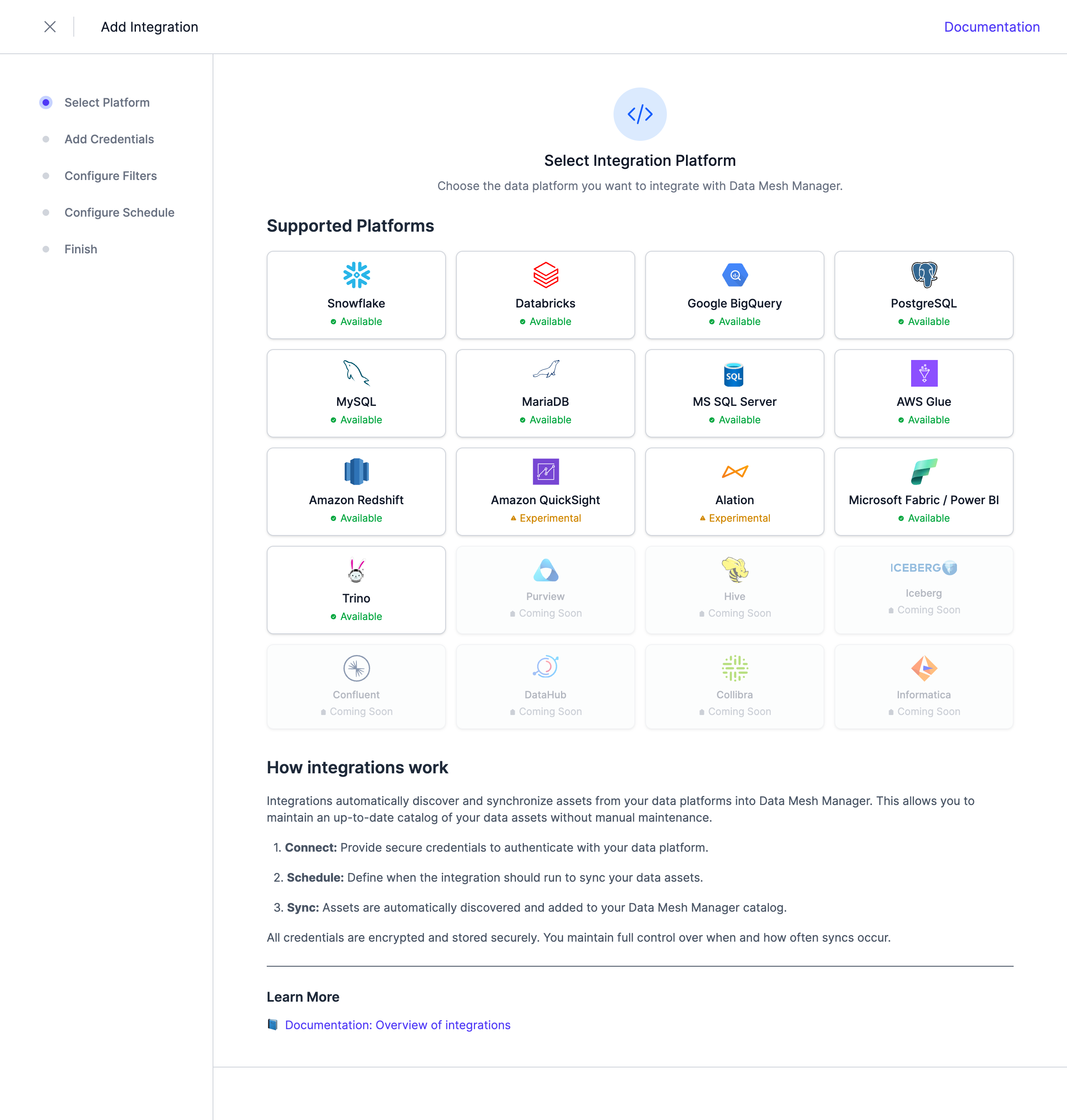
Select Alation from the list of available integrations.
Configure the Credentials
Provide the following connection details:
| Parameter | Description |
|---|---|
| Base URL | The URL of your Alation instance, e.g. https://alation.example.com |
| Client ID | The client ID of the OAuth client application |
| Client Secret | The client secret of the OAuth client application |
Note: Credentials are stored encrypted in the Entropy Data database. To enable encryption in your environment, set a 64 hex character
APPLICATION_ENCRYPTION_KEYSin your environment (see Configuration).
Configure Filters
Configure filters to limit which assets are synchronized. Both include and exclude filters are supported. For Alation, filters can be applied to Data Sources, Schemas, and Tables.
Filters support '*' as a wildcard character to match any number of characters. Data sources are matched on their Alation title.
Matching is case-sensitive, an empty include list includes everything at that level, and an exclude pattern always wins over an include pattern.
Configure Schedule
Set a schedule to automatically synchronize assets. You can choose from predefined schedules or define a custom schedule using the cron expression format.
Note: All schedules use the UTC timezone, so make sure to take this into account when configuring your schedule. Please do not synchronize the assets more than once or twice per day. We reserve the right to disable the integration if this happens. You will be able to trigger a synchronization manually if you need an immediate update.
Complete the Integration Configuration
Choose a unique name for the integration, review your configuration, and click Create Integration.
Custom fields
Alation custom fields attached to a data source, schema, or table are copied into the asset's custom properties. Entropy Data resolves each custom field ID to the field's name in Alation, so a custom field named Data Steward appears as Data Steward on the asset rather than as a numeric ID. Empty values are omitted.
Next Steps
The integration is now configured and will run according to the schedule. To check the integration status, navigate to Settings > Integrations. Here you'll find the current status and the last 10 integration runs.
You can adjust the integration configuration at any time. The configuration is saved in YAML format with syntax validation support in the editor.
You can also change and test credentials in the edit view.
Note: The previously stored credentials are not displayed in the edit view for security reasons. If you want to change them, add new credentials and save the integration.
Deselecting the Enabled checkbox disables the automatic schedule. Manual integration runs are still possible.