
Semantic Models
Describe the datasets, fields, metrics and relationships that BI tools and AI agents query, in the open Apache Ossie format, and link each element to the business concepts of your ontology.
A semantic model is the layer between physical tables and the people or agents that ask questions of them. It says which tables exist, how they join, which columns are dimensions and which are facts, and how a metric such as Total Revenue is calculated. Entropy Data stores each semantic model as an Apache Ossie document, so the same file can move between Entropy Data, BI tools and AI agents.
A semantic model is different from a Semantics namespace. A namespace is the ontology: it defines what a Customer or Revenue means, independent of any system. A semantic model describes concrete datasets and points each of their elements at a concept in the ontology.
Enable Semantic Models
Semantic models are part of the Semantics feature and have no switch of their own. Semantics is on by default.
- Entropy Data Cloud: semantic models are available in every organization that has Semantics.
- Self-Hosted: semantic models are available unless you turned Semantics off with
application.semantics.enabled=false(environment variableAPPLICATION_SEMANTICS_ENABLED=false).
Where Semantic Models Appear
The Semantics Overview
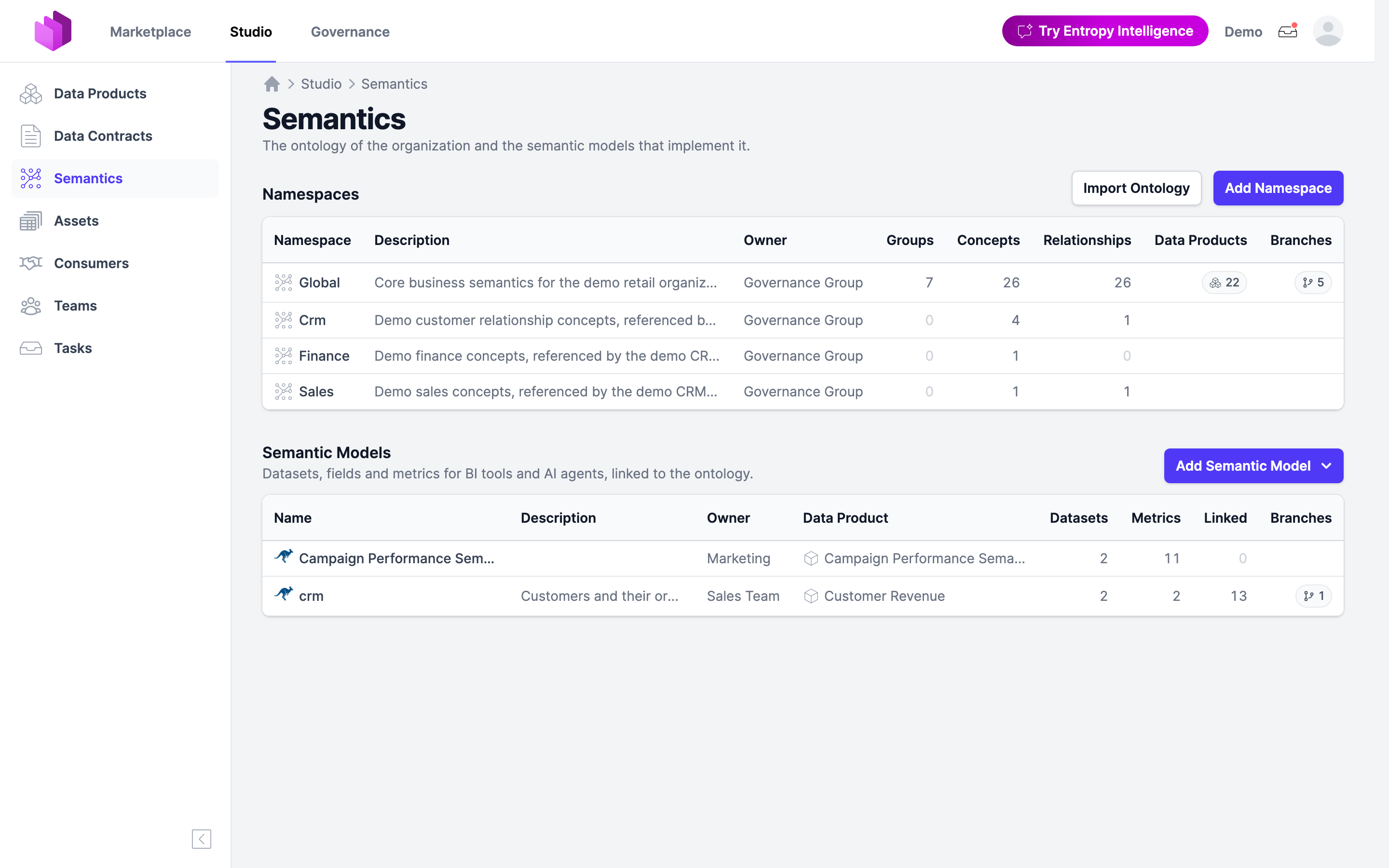
Open Semantics in the sidebar of the Marketplace or the Studio. The overview lists the ontology namespaces first and the semantic models below them. For each semantic model, the table shows the owner team, the data product, the number of datasets and metrics, the number of elements linked to the ontology, and the number of open branches.
The Data Product Page
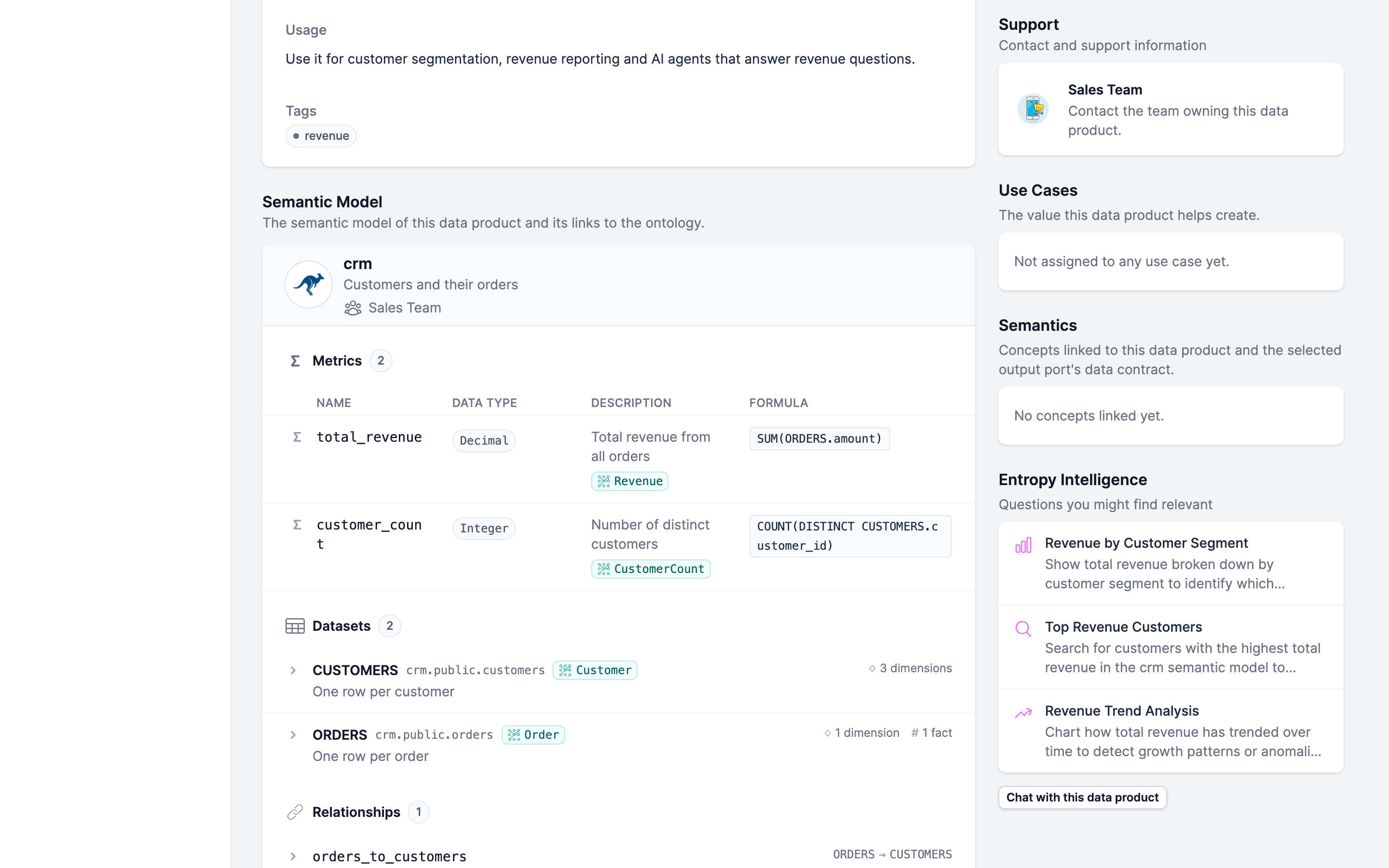
A data product has at most one semantic model. When it has one, the data product page shows a Semantic Model section with the model in a condensed form: the metrics, a list of datasets that you can expand to their fields, and the relationships. In the Marketplace, the section is read-only. In the Studio, it also has the actions to edit the model.
The built-in data product type Semantic Model is for a data product whose main output is a semantic model. You can still attach a semantic model to a data product of any other type.
Other Places
- Search: global search finds semantic models by their name and by the names and descriptions of their datasets, fields, relationships and metrics.
- Concept pages: the page of a concept in a Semantics namespace lists the semantic models that link to it.
- Assets: the page of a Power BI semantic model asset or a Snowflake semantic view asset shows the semantic model that the source tool defines, and links to the Entropy Data semantic model created from it.
- Entropy Intelligence: the chat can search semantic models and read one, with its datasets, metrics and formulas, relationships, linked concepts, data product and lineage. See Entropy Intelligence.
The Semantic Model Page
The page of a semantic model has a header, a main column and a sidebar.
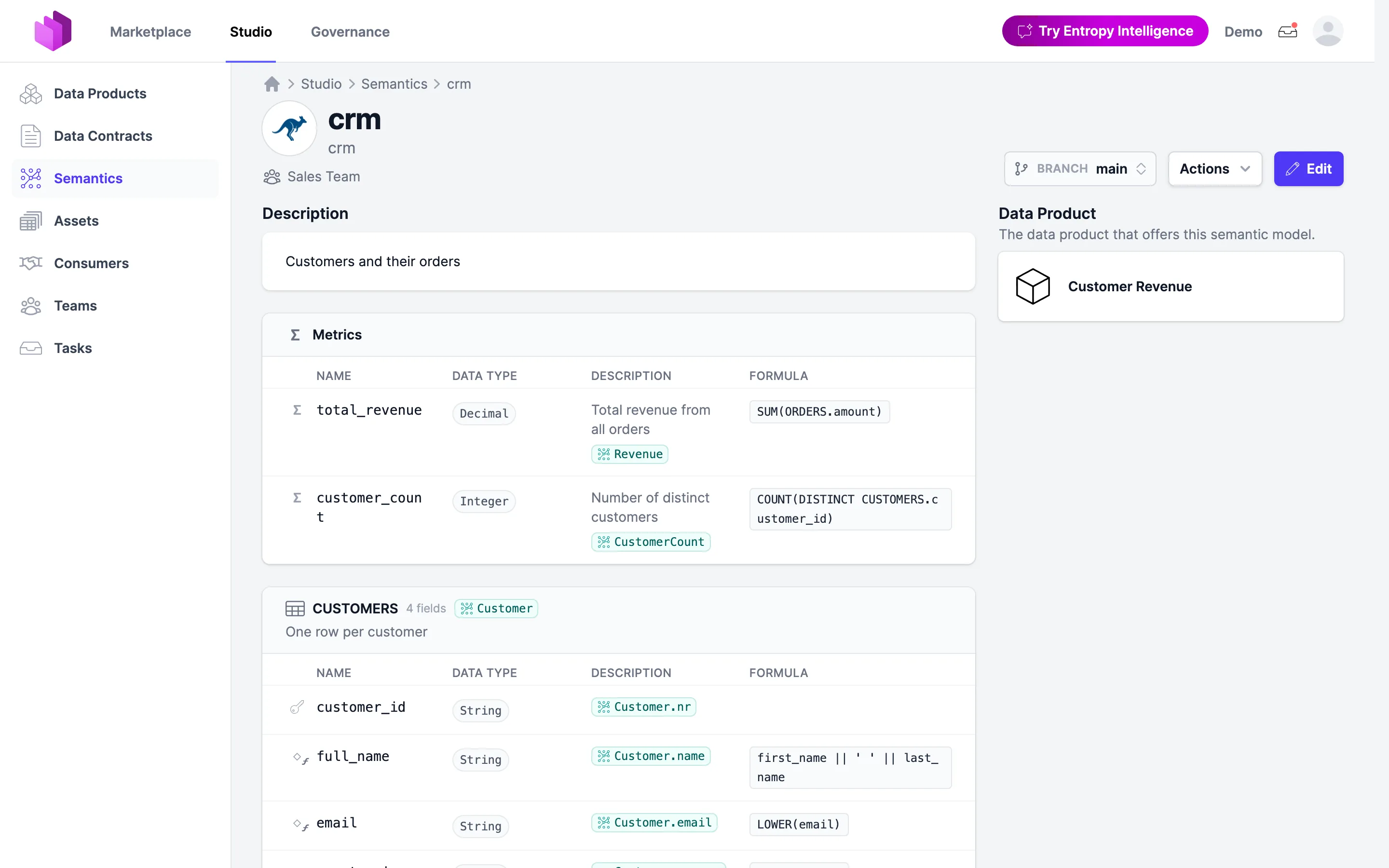
The header shows the Ossie mark, the name and the ID of the model, and below them the owner team, domain, status and tags. On the right are the Branch switcher, the Actions menu and the Edit button. The Actions menu offers Create Data Contract and, for a model without a data product, Create Data Product.
The main column shows, from top to bottom:
- Description, and the concepts linked to the model as a whole.
- Metrics: name, data type, description, linked concepts and formula of each metric.
- One card for each dataset: the name, the number of fields, the linked concept, the description, the unique keys and the synonyms. A table lists the fields with their data type, description, linked concept and formula. The formula appears only for a calculated field.
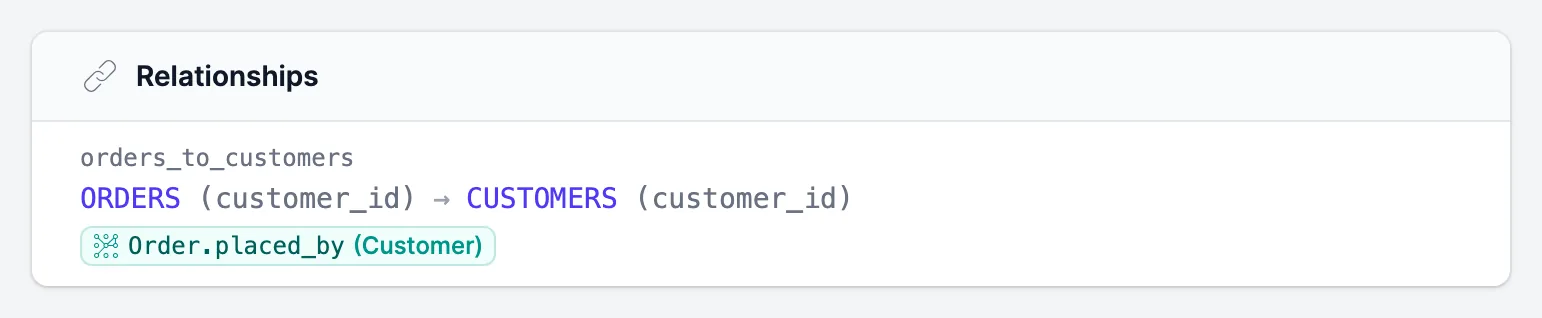
- Relationships: each join, with the datasets and columns on both sides and the linked concept.
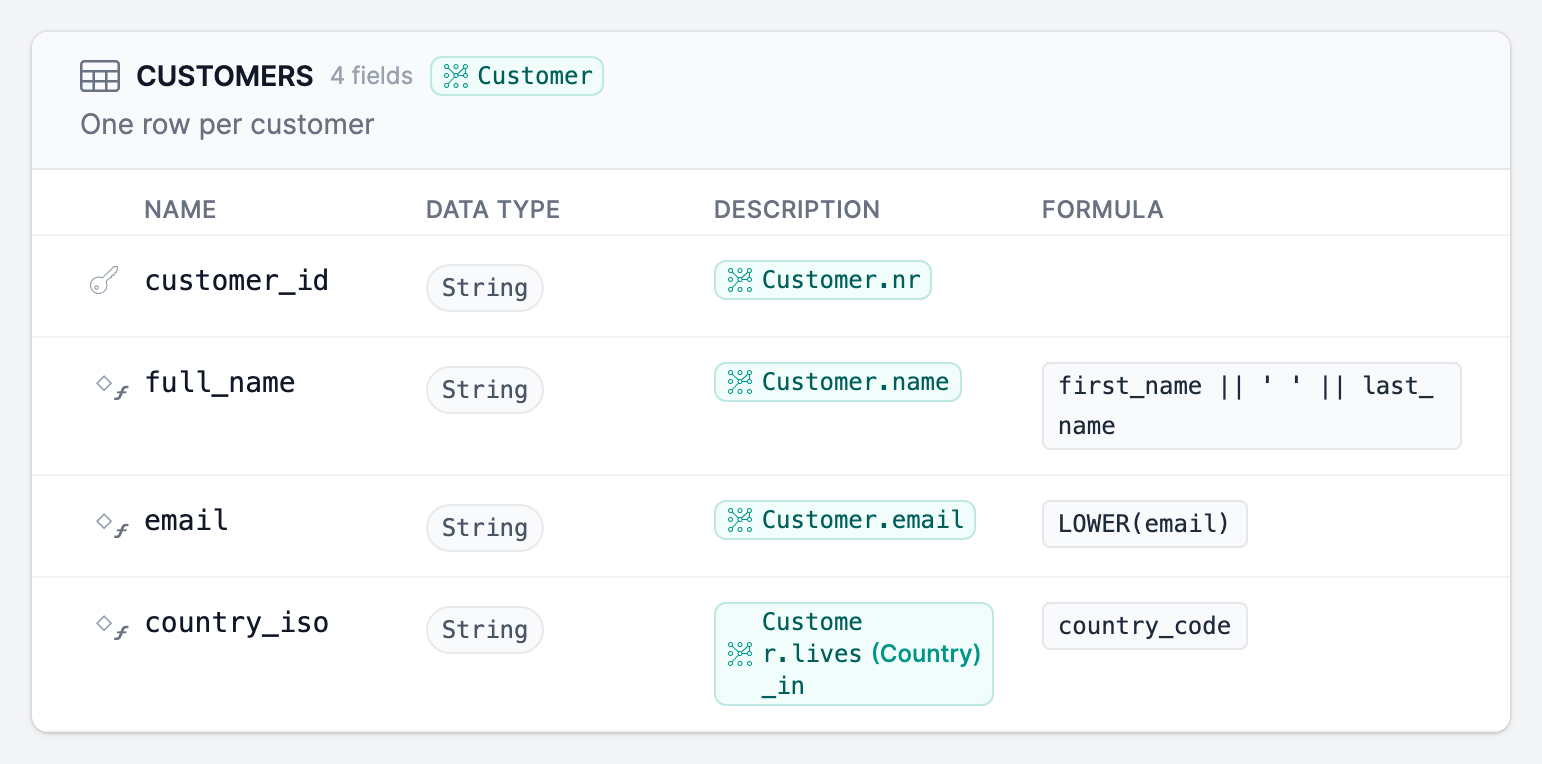
A glyph in front of each field shows its role. Ossie has no field roles, so Entropy Data derives them from the document:
- Key column (key icon): the field is part of the primary key, a unique key or a relationship.
- Dimension (◇): the field has a
dimensionblock, or its data type is not numeric. - Time dimension (◷): the field has
dimension.is_time: true. - Fact (#): the data type is
Integer,DecimalorFloat. - Calculated (small ƒ next to the role): the expression is more than the name of a column, for example
LOWER(email).
A metric that reads from one dataset only is also listed in the card of that dataset, so the card shows everything that you can calculate from that table.
The sidebar shows the Data Product that offers the semantic model. If the model was imported from an asset, the sidebar also shows a Source card. See Imported Semantic Models and Drift.
Create a Semantic Model
You can create a semantic model in four ways.
From the Semantics Overview
- Open Studio > Semantics.
- Click Add Semantic Model.
- Choose Add in the Editor to start in the visual editor, or Add as YAML to paste or write an Ossie document.
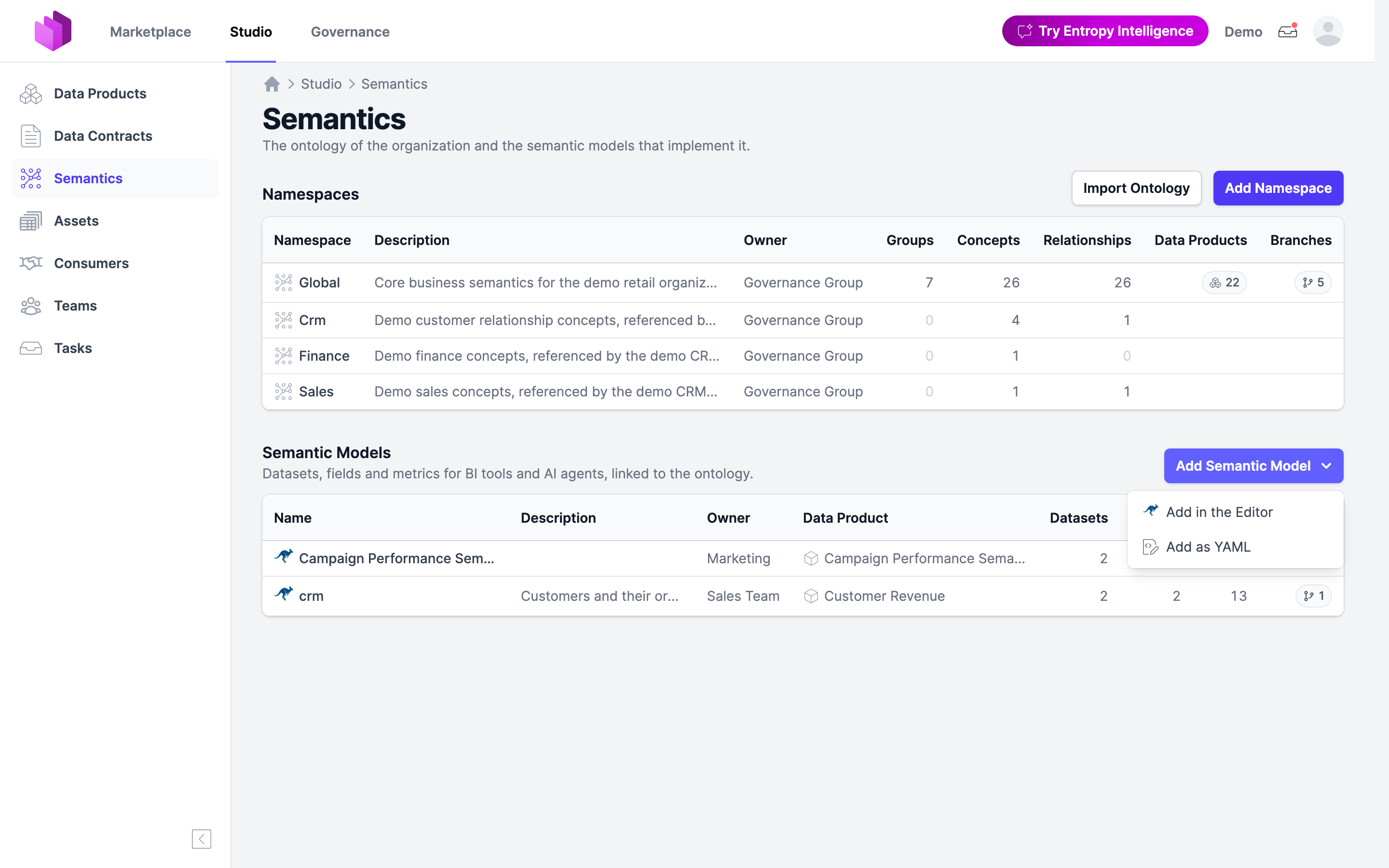
The new model starts from a template. The template sets the Ossie version, a placeholder name, the status draft, and the first team in which you can add semantic models as the owner. The template has no datasets. Add at least one dataset before you save, because the Ossie schema requires one.
From a Data Product
Open a data product in the Studio that has no semantic model yet. Choose Add Semantic Model and then Add in the Editor or Add as YAML. The new model already names the data product. To give a semantic model to a data product, you must have the edit permission on that data product.
From an Asset
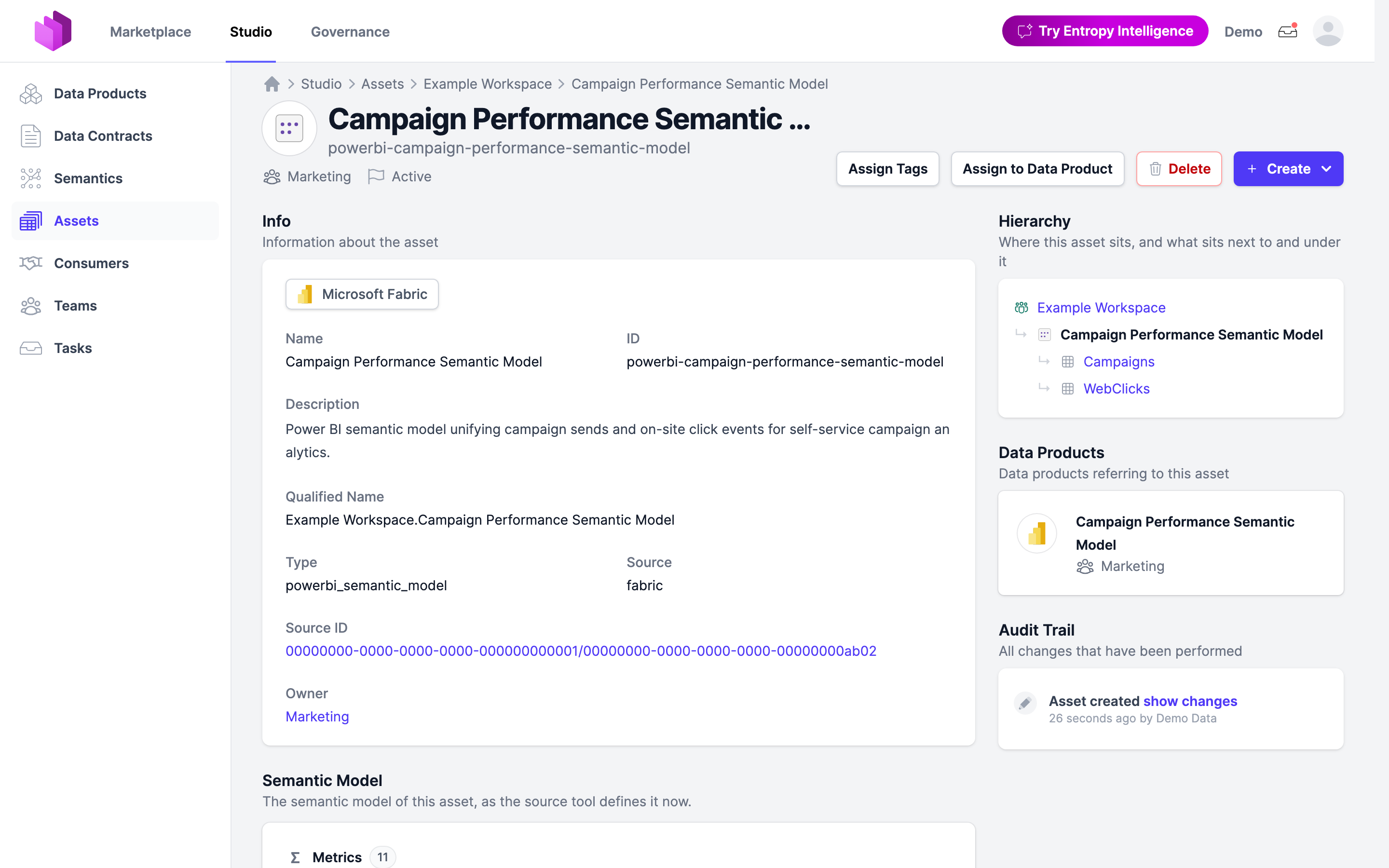
Entropy Data converts two kinds of assets into Ossie semantic models:
- Power BI semantic models (asset type
powerbi_semantic_model), read from their TMDL definition. Tables become datasets, columns become fields, and measures become metrics. Measures keep their DAX expressions in theDAXdialect. - Snowflake semantic views (asset type
snowflake_semantic_view), read from their Cortex Analyst YAML. Logical tables become datasets. Dimensions, time dimensions and facts become fields. Metrics and derived metrics become metrics in theSNOWFLAKEdialect.
Information that Ossie cannot express goes into a POWER_BI or SNOWFLAKE custom extension, so nothing is lost.
To convert an asset, open the asset in the Studio and choose Create > Create Semantic Model. The new model belongs to the team that owns the asset and to no data product. If the asset already has a semantic model, the menu shows Open Semantic Model instead.
When You Import a Data Product from an Asset
When you import a data product from a Power BI semantic model or a Snowflake semantic view, Entropy Data also creates the semantic model and gives it to the new data product. If the conversion fails, the data product is still imported, without a semantic model.
The Semantic Model Editor
Click Edit on the semantic model page to open the visual editor. The editor has two views, Editor and YAML, that edit the same document. Switch between them at any time.
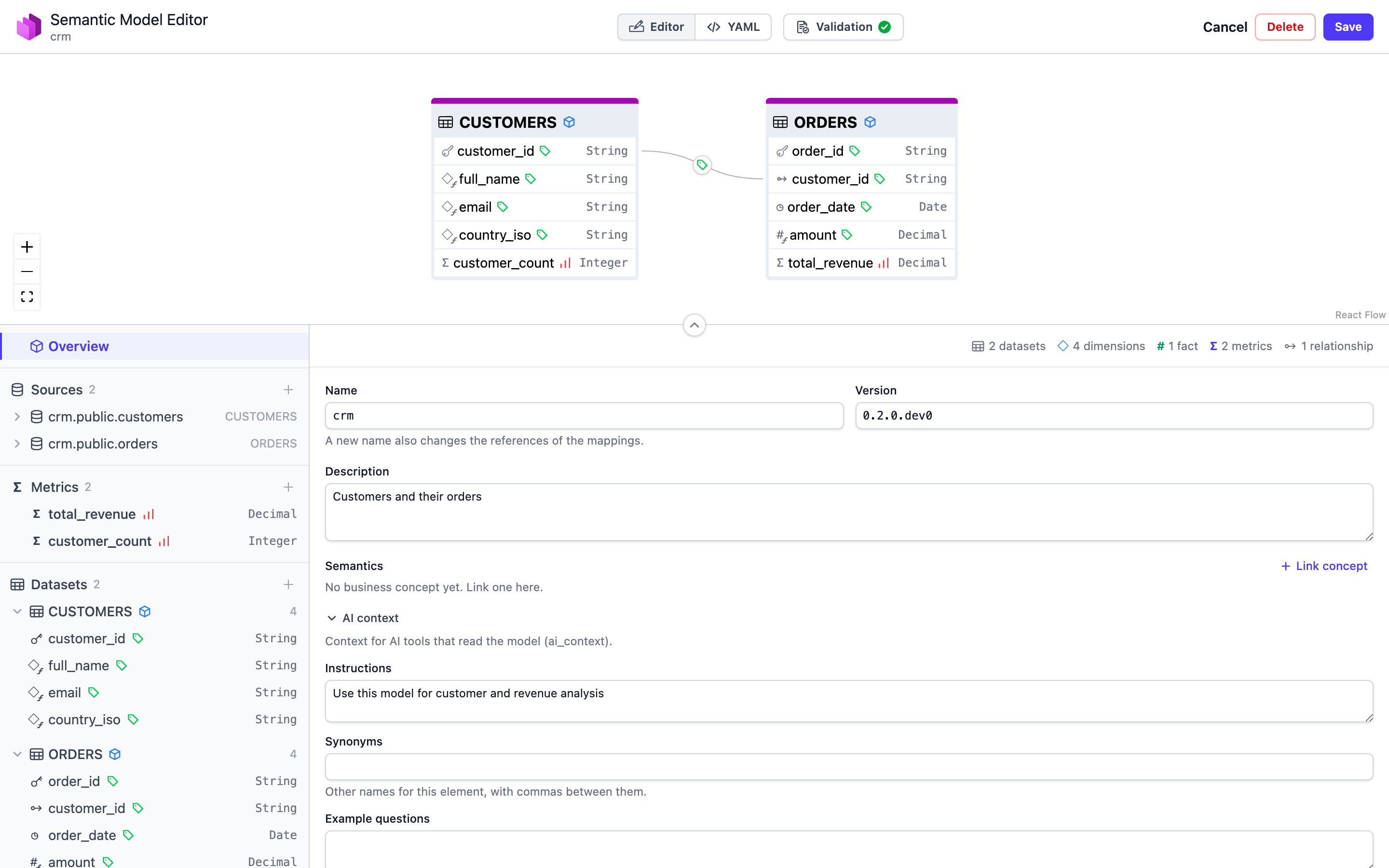
The Editor view has three parts:
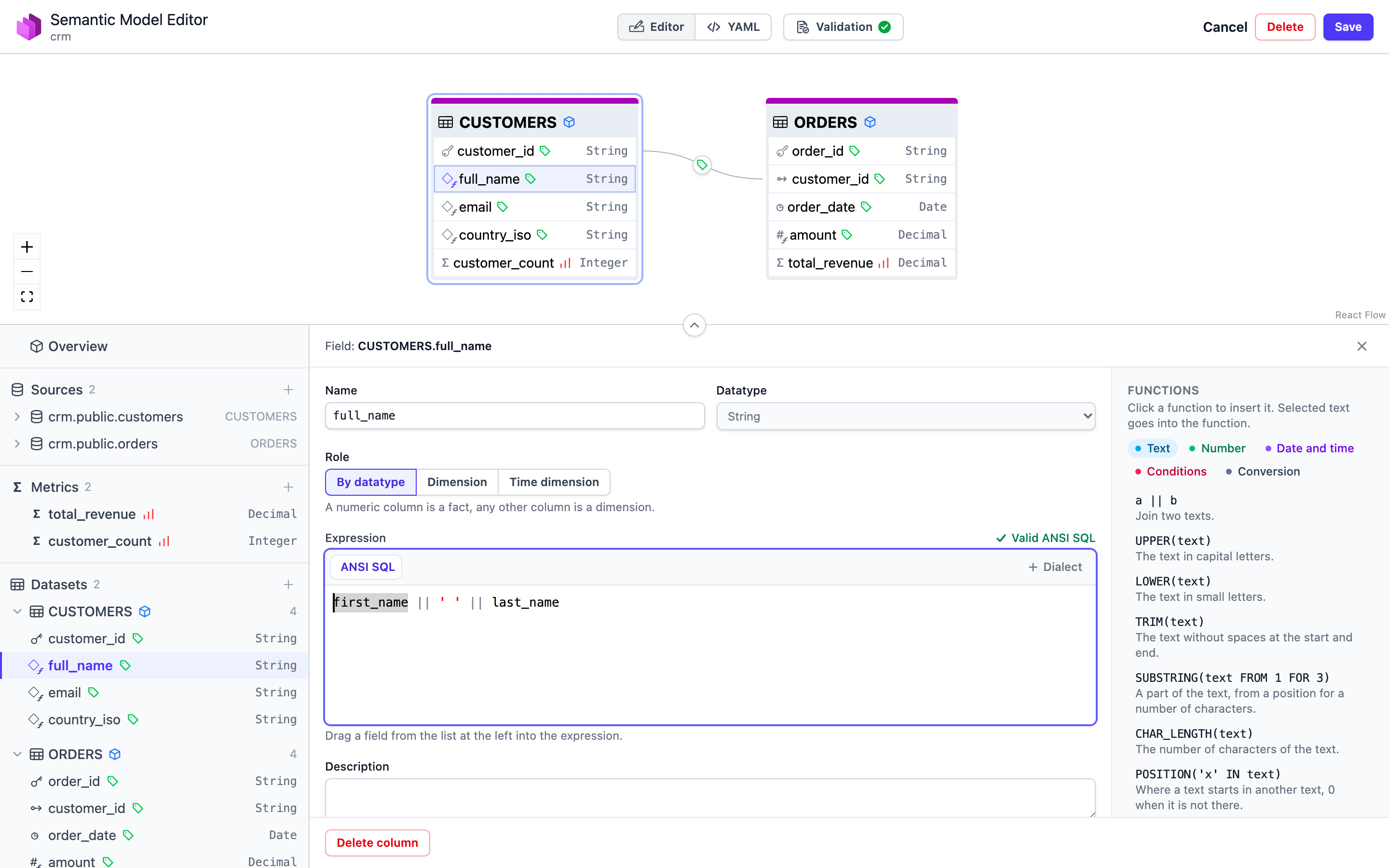
- Diagram: the datasets as tables, with their fields and the relationships between them. To create a relationship, drag a field onto a field of another dataset. Use the controls on the left to zoom and fit the diagram, and the arrow below it to fold it away.
- Element tree on the left: Overview, Sources, Metrics and Datasets with their fields. Click + next to a group to add a source, a metric or a dataset. Click an element to edit it.
- Form on the right: the fields of the selected element. The Overview form edits the name, version, description, linked concepts and AI context of the whole model. A counter above it shows the number of datasets, dimensions, facts, metrics and relationships.
Edit Fields and Metrics
Select a field to edit its name, data type, role and expression. Under Role, choose By datatype to let the data type decide, or set Dimension or Time dimension explicitly.
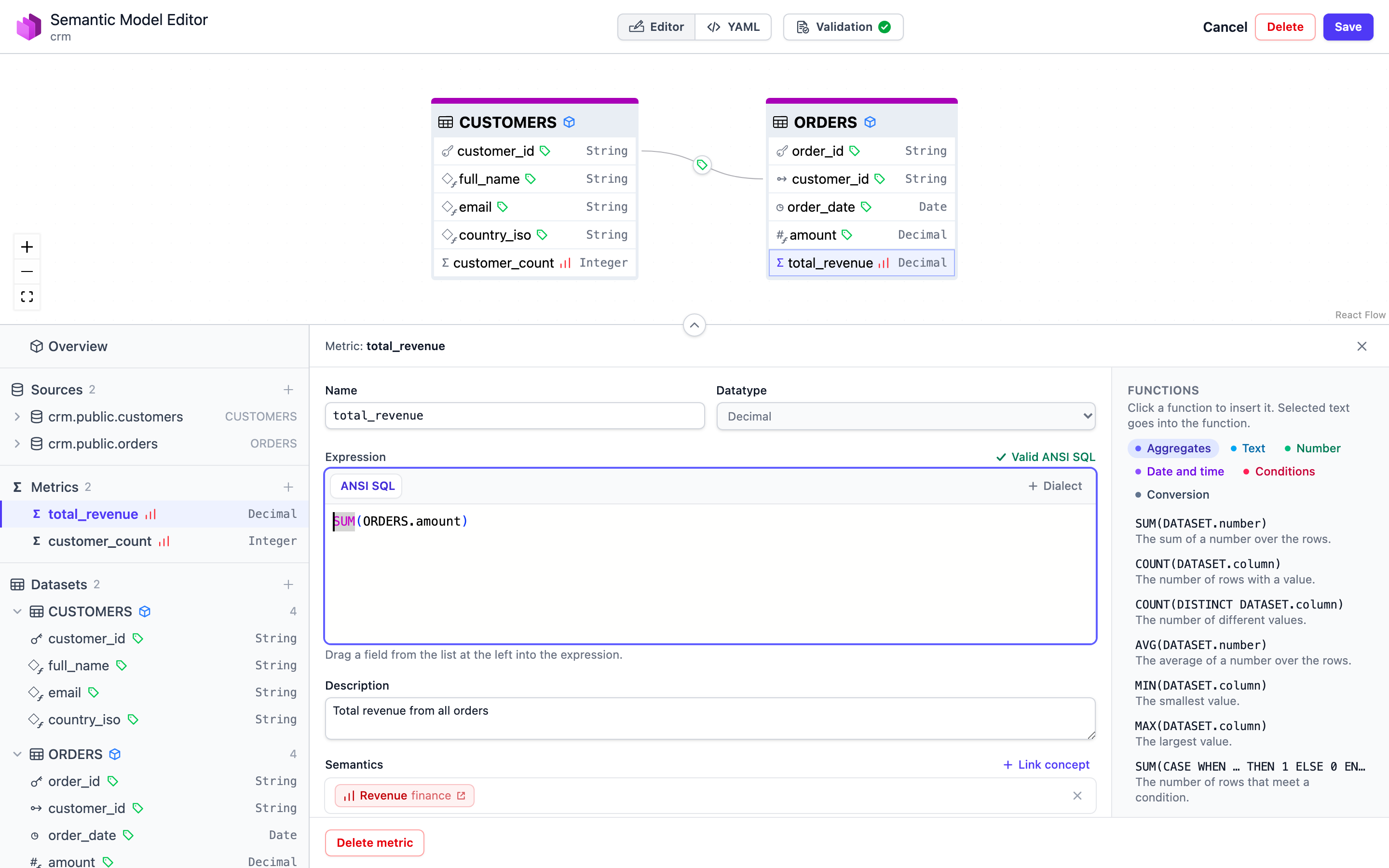
The expression editor checks the expression as you type and shows, for example, Valid ANSI SQL. Click + Dialect to add the same expression in another SQL dialect, such as Snowflake, Databricks or DAX. The Functions panel on the right lists the functions for the current dialect, grouped by kind. Click a function to insert it. Drag a field from the tree into the expression to insert its name.
Metrics are edited the same way. A metric expression aggregates over a dataset, for example SUM(ORDERS.amount), so the function palette starts with the aggregates.
Link Elements to the Ontology
Every dataset, field, relationship and metric, and the model itself, has a Semantics block. Click Link concept to pick a concept or a relationship from a Semantics namespace. A field usually links to a property of the concept that its dataset represents, for example CUSTOMERS.email to Customer.email.
These links make the semantic model readable for people and agents that know the business terms but not the table names. They also appear on the page of the concept, so you can see which semantic models implement it.
AI Context
Expand AI context on any element to give AI tools more to work with:
- Instructions: how to use the element, for example "Use this model for customer and revenue analysis".
- Synonyms: other names for the element, separated by commas.
- Example questions: questions that the element can answer.
YAML View and Validation
The YAML view shows the whole Ossie document, with comments kept. The Problems bar at the bottom checks the document against the Ossie schema while you type. Validation in the header shows a check mark when there are no problems, or the number of problems.
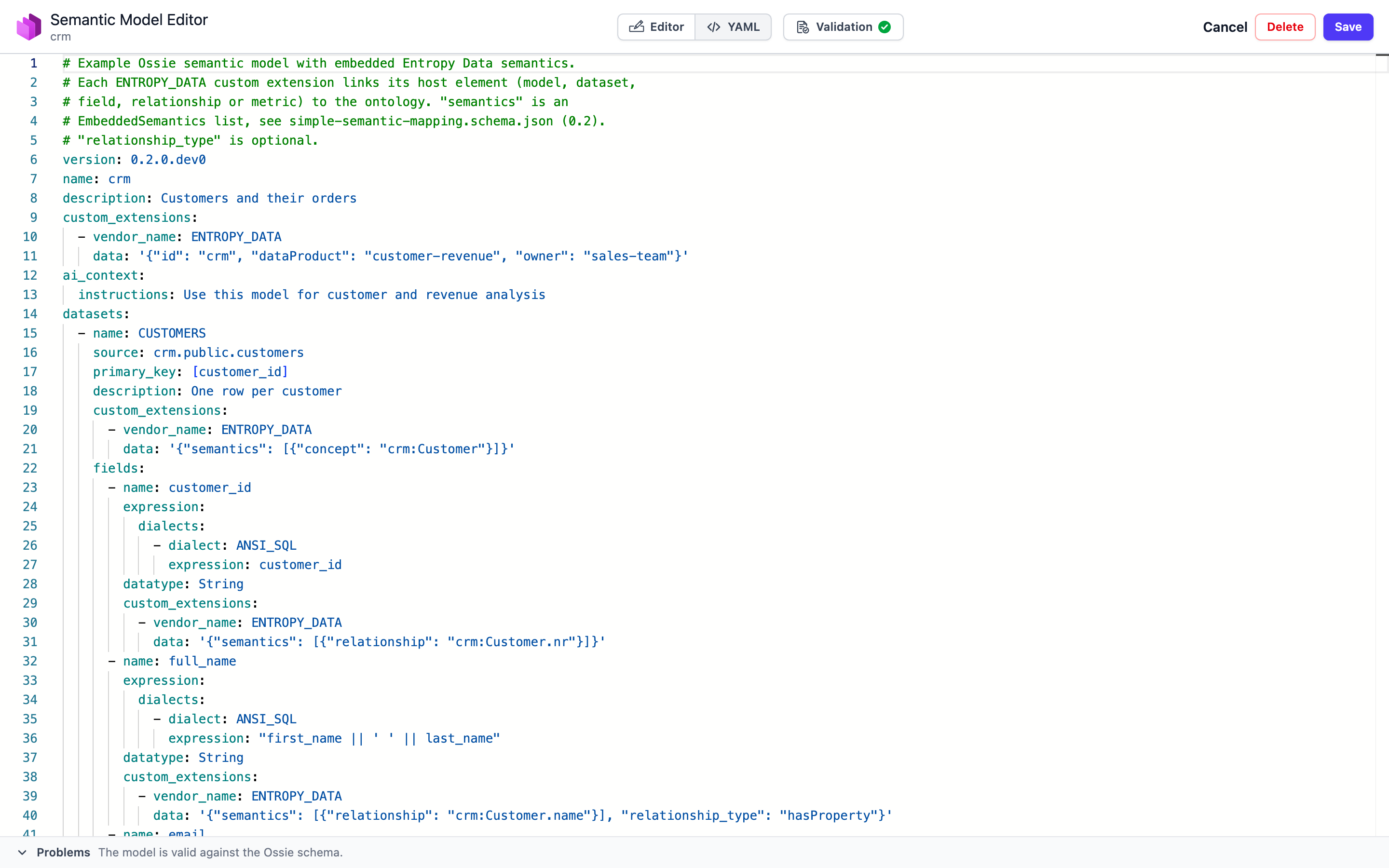
Click Save to save the model. If someone else saved the model while you edited it, Entropy Data does not overwrite their change. Reload the editor and apply your change again. Delete deletes the whole semantic model.
The Ossie Document
A semantic model is one YAML document in the Apache Ossie Core Metadata format, version 0.2.0.dev0. The document can be read and written with the YAML view, the API and the MCP tools.
Example
This example has two datasets, one relationship and one metric. The ENTROPY_DATA custom extensions hold the Entropy Data metadata and the links to the ontology.
version: "0.2.0.dev0"
name: "crm"
description: "Customers and their orders"
custom_extensions:
  - vendor_name: "ENTROPY_DATA"
    data: '{"id": "crm", "dataProduct": "customer-revenue", "owner": "sales-team", "status": "active"}'
ai_context:
  instructions: "Use this model for customer and revenue analysis"
datasets:
  - name: "CUSTOMERS"
    source: "crm.public.customers"
    primary_key: ["customer_id"]
    description: "One row per customer"
    custom_extensions:
      - vendor_name: "ENTROPY_DATA"
        data: '{"semantics": [{"concept": "crm:Customer"}]}'
    fields:
      - name: "customer_id"
        expression:
          dialects:
            - dialect: "ANSI_SQL"
              expression: "customer_id"
        datatype: "String"
      - name: "email"
        expression:
          dialects:
            - dialect: "ANSI_SQL"
              expression: "LOWER(email)"
        datatype: "String"
        custom_extensions:
          - vendor_name: "ENTROPY_DATA"
            data: '{"semantics": [{"relationship": "crm:Customer.email"}], "relationship_type": "hasProperty"}'
  - name: "ORDERS"
    source: "crm.public.orders"
    primary_key: ["order_id"]
    fields:
      - name: "order_id"
        expression:
          dialects:
            - dialect: "ANSI_SQL"
              expression: "order_id"
        datatype: "String"
      - name: "customer_id"
        expression:
          dialects:
            - dialect: "ANSI_SQL"
              expression: "customer_id"
        datatype: "String"
      - name: "order_date"
        expression:
          dialects:
            - dialect: "ANSI_SQL"
              expression: "order_date"
        datatype: "Date"
        dimension:
          is_time: true
      - name: "amount"
        expression:
          dialects:
            - dialect: "ANSI_SQL"
              expression: "order_total"
        datatype: "Decimal"
relationships:
  - name: "orders_to_customers"
    from: "ORDERS"
    to: "CUSTOMERS"
    from_columns: ["customer_id"]
    to_columns: ["customer_id"]
metrics:
  - name: "total_revenue"
    expression:
      dialects:
        - dialect: "ANSI_SQL"
          expression: "SUM(ORDERS.amount)"
    description: "Total revenue from all orders"
    datatype: "Decimal"
    custom_extensions:
      - vendor_name: "ENTROPY_DATA"
        data: '{"semantics": [{"concept": "finance:Revenue"}]}'
Structure
| Element | Required keys | Optional keys |
|---|---|---|
| Document | version, name, datasets (at least one) | description, ai_context, relationships, metrics, custom_extensions |
| Dataset | name, source | primary_key, unique_keys, description, ai_context, fields, custom_extensions |
| Field | name, expression | datatype, dimension (with is_time), label, description, ai_context, custom_extensions |
| Relationship | name, from, to, from_columns, to_columns | ai_context, custom_extensions |
| Metric | name, expression | datatype, description, ai_context, custom_extensions |
Keys that the schema does not know are refused.
- An
expressionholds a list ofdialects, each with adialectand anexpression. The dialects areANSI_SQL,SNOWFLAKE,DATABRICKS,BIGQUERY,DAX,MDX,TABLEAU,MAQL,SIGMA,THOUGHTSPOTandOSSIE_SQL_2026. - A
datatypeis one ofString,Integer,Decimal,Float,Boolean,Date,Time,DateTime,DateTimeTzandOpaque. ai_contextis a string, or an object withinstructions,synonymsandexamples.- A custom extension has a
vendor_nameand adatastring.
The Entropy Data Extension
Entropy Data reads the custom extension with vendor_name: "ENTROPY_DATA". Its data is a JSON object written as a string.
On the document, the extension holds the metadata of the semantic model:
| Key | Meaning |
|---|---|
id | The ID of the semantic model in Entropy Data. If it is missing, Entropy Data derives the ID from name. The ID cannot change after the first save. |
dataProduct | The ID of the data product that offers the model. |
owner | The ID of the owner team. |
domain | The ID of the domain. |
status | The status, for example draft or active. |
tags | A list of tags. |
semantics | Links of the whole model to the ontology. |
On a dataset, field, relationship or metric, the extension holds the links of that element:
{"concept": "crm:Customer"}links to a concept, written asnamespace:ConceptIdor as the IRI of the concept.{"relationship": "crm:Customer.email"}links to a relationship or property of a concept, written asnamespace:Concept.propertyor as an IRI. Add"role": "Country"to name the target of a relationship that has more than one role.relationship_typeis optional and records the type of the relationship, for examplehasPropertyorrelatedTo.
When the ontology changes, Entropy Data checks the links again. The model itself does not change.
Validation
Entropy Data refuses to save a document with one of these errors:
- The YAML is not valid, or the document does not match the Ossie schema.
- The Ossie version is not supported.
- Two datasets, two fields of one dataset, or two metrics have the same name.
- A relationship names a dataset that does not exist, or its
from_columnsandto_columnshave different lengths. - The
ENTROPY_DATAextension occurs twice on one element, its data is not valid JSON, or its structure is not valid. - The ID changed, contains one of the characters
/ \ % ; # ?, or is already used by another semantic model. - The owner team does not exist, or someone other than an organization owner removed it.
- A tag is not one of the managed tags of the organization.
- The data product already has another semantic model.
Entropy Data saves the document but shows a warning when the data product or the domain does not exist, or when a link to the ontology cannot be resolved. Fix a warning later, for example after you add the missing concept.
Data Products and Data Contracts
The Data Product of a Semantic Model
The dataProduct key gives a semantic model to a data product. A data product has at most one semantic model. To give a model to a data product, move it to another one, or take it away, you need the edit permission on each data product involved. When a data product is deleted, its semantic model stays and belongs to no data product.
A reader who is not allowed to see the data product sees the semantic model, but not the name of the data product.
Create a Data Contract from a Semantic Model
Choose Actions > Create Data Contract on the semantic model page. On an output port that has no data contract and no assets, the data product page also offers Create Data Contract from Semantic Model.
Entropy Data opens the data contract editor with an ODCS contract drafted from the model:
- one schema object for each dataset, with the
sourceas the physical name, - one property for each field, with its logical type, description and primary key,
- the links to the ontology as
semanticsauthoritative definitions, - the relationships as foreign keys.
Metrics are not part of the contract. Nothing is saved until you save the contract in the editor.
Create a Data Product from a Semantic Model
A semantic model without a data product, for example one converted from an asset, offers Create Data Product in the Actions menu and in the sidebar. Entropy Data opens the form for a new data product. When you create the data product, Entropy Data gives the semantic model to it. If the data product needs approval first, the model is given to it after the approval.
Imported Semantic Models and Drift
A semantic model converted from a Power BI semantic model or a Snowflake semantic view remembers its source asset. The header names the source tool, and the sidebar shows the Source card.
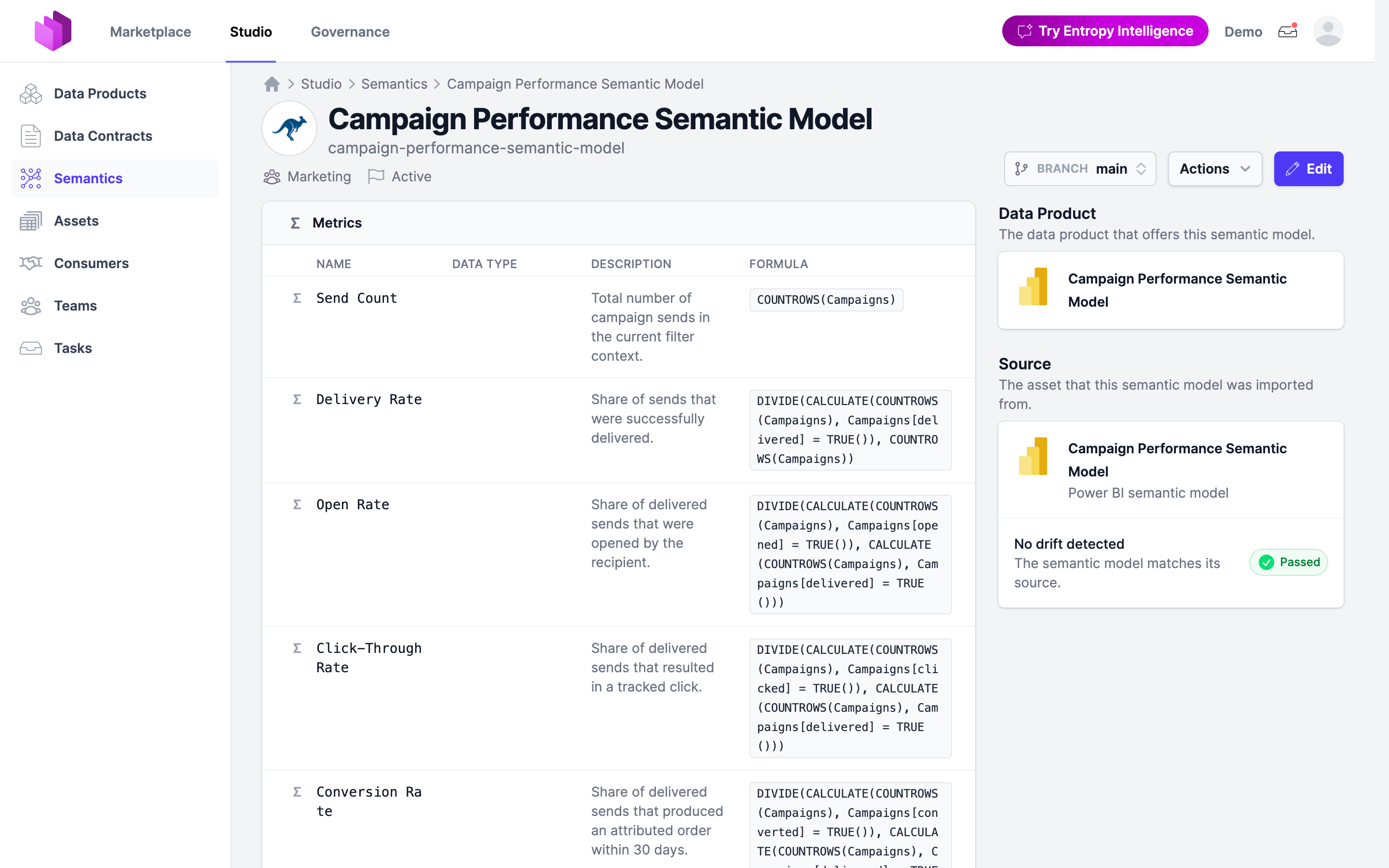
The Source card compares the semantic model with its source. Entropy Data converts the asset again and compares the two element by element. Its own additions, such as the name and the ENTROPY_DATA extensions, do not count.
- No drift detected (Passed): the model matches its source.
- Drift detected (Drift): the model and the source differ. The card lists each difference as Only in the model, Only in the source or Different.
- Drift unknown (Unknown): the source asset no longer exists, or it cannot be converted.
Entropy Data does not change the semantic model when its source changes. To take over a change from the source, edit the model.
Branches
A branch is a working copy of a semantic model. Use a branch to draft a larger change, to let a colleague or an agent propose one, or to review a set of edits before they change the model. Nothing on a branch is visible outside it until you merge it.
Create a Branch
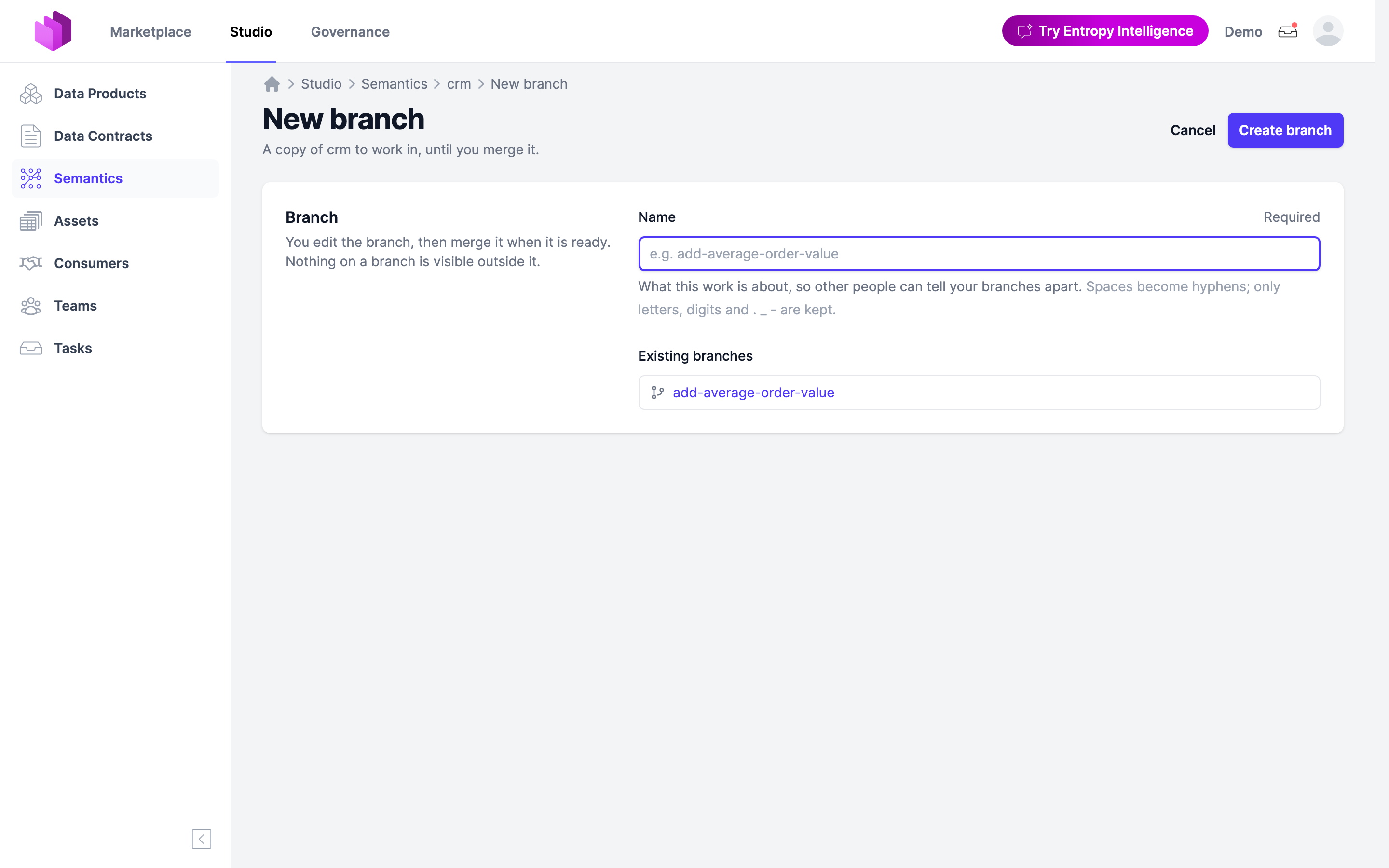
- On the semantic model page, open the Branch switcher.
- Choose New branch.
- Enter a name that says what the work is about, for example
add-average-order-value. Spaces become hyphens. Only letters, digits and.,_and-are kept. The namesmainandneware reserved. - Click Create branch.
Work on a Branch
The branch page shows a band: You are on branch add-average-order-value of crm, with the number of changes. The Model tab shows the model as it is on the branch. Each element that the branch adds, edits or removes carries a mark.
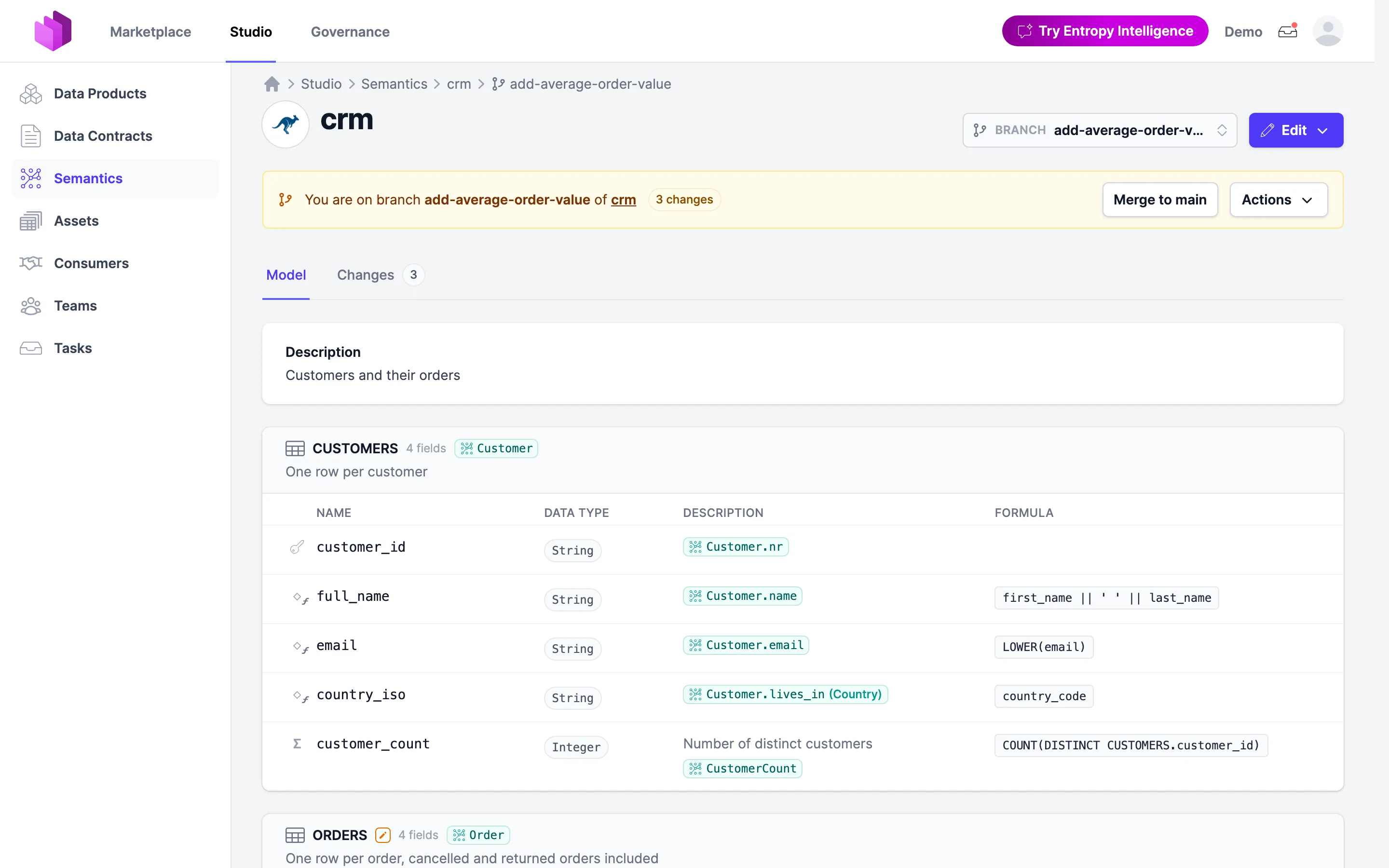
Use Edit > Edit in the editor or Edit > Edit YAML to change the branch. A branch cannot change the ID, the owner team or the data product of the model.
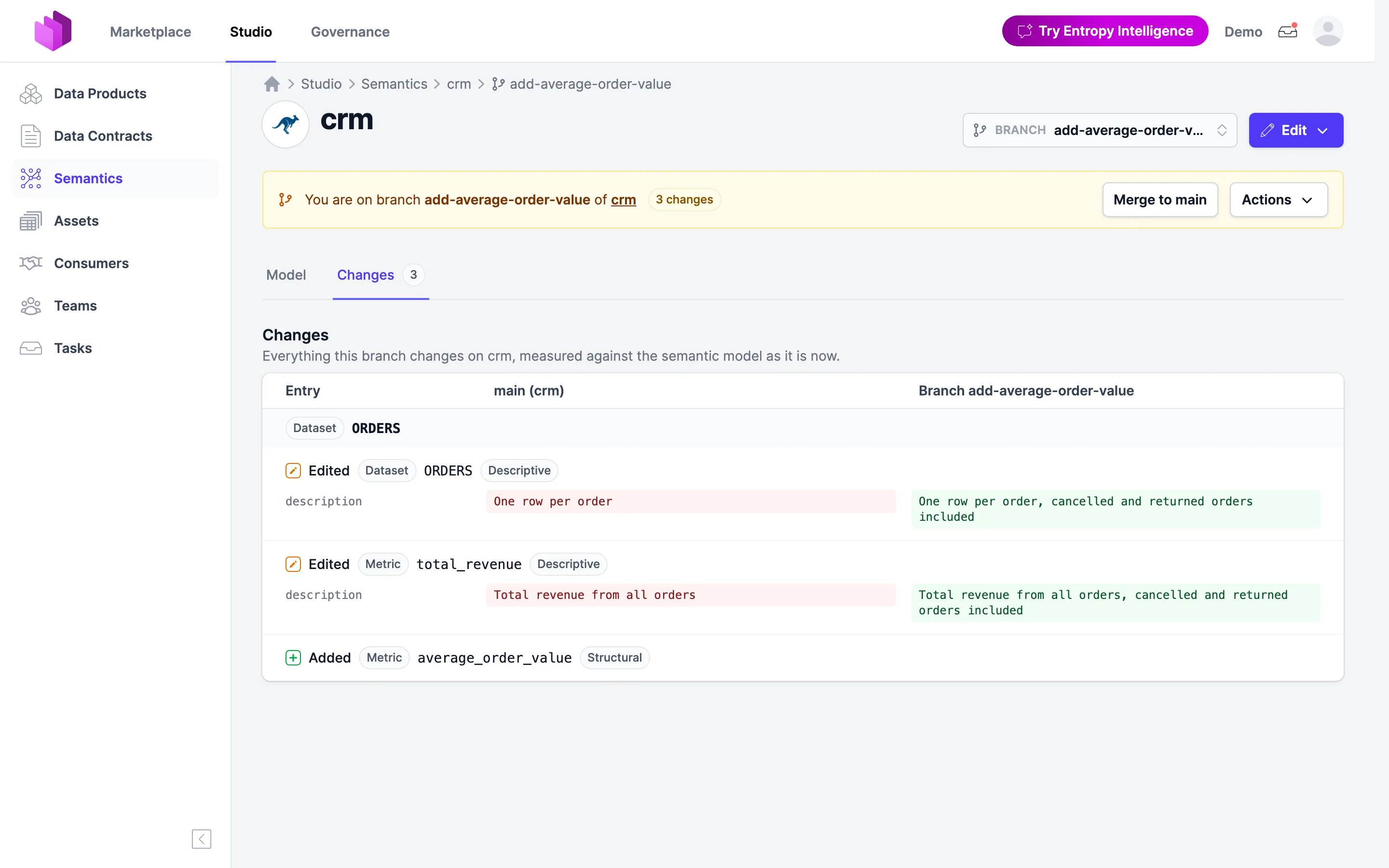
The Changes tab lists every change of the branch, compared with the semantic model as it is now. Each change shows whether an element was Added, Edited or Removed, the old and the new value, and its impact:
- Structural: a change that alters query results, such as the source, a key, an expression, a data type, a dimension, or the datasets and columns of a relationship.
- Descriptive: a change to a description or another field that does not alter query results.
Update from Main and Resolve Conflicts
If the semantic model changed after you created the branch, choose Actions > Update from main to take those changes into the branch. Entropy Data merges the model, the branch and their common starting point element by element.
If the model and the branch changed the same element, the branch is marked Conflicted. A conflict occurs when an element changed on both sides, changed on one side and was removed on the other, or was added on both sides with different content. Click Resolve conflicts to see both versions side by side. Choose per element, or choose Use this branch for all or Use main for all.
Merge a Branch
Click Merge to main and confirm. Every change of the branch lands on the semantic model, and the branch is deleted. The merge saves the model with the same checks as any other save. You cannot merge a branch that has conflicts or no changes.
Actions > Delete branch discards the branch without merging it.
Permissions
Every member of the organization can see semantic models. The owner team of a semantic model controls who can change it:
| Action | Required permission |
|---|---|
| Create a semantic model | SEMANTICMODEL_ADD on the owner team. |
| Edit a semantic model | SEMANTICMODEL_EDIT on the owner team. Without an owner team, SEMANTICMODEL_ADD in any team. |
| Delete a semantic model | SEMANTICMODEL_DELETE on the owner team. Without an owner team, organization owners only. |
| Create and edit a branch | SEMANTICMODEL_EDIT or SEMANTICMODEL_BRANCH_ADD on the owner team. |
| Merge a branch | SEMANTICMODEL_EDIT on the owner team. |
| Delete a branch | The permission to merge, or the person who created the branch. |
| Give a model to a data product | Also DATAPRODUCT_EDIT on the data product. |
The default team roles Owner, Approver and Editor can add, edit and delete semantic models. The Member role has SEMANTICMODEL_BRANCH_ADD only, so a member can propose a change on a branch, and an editor merges it.
API keys and agents follow the same permissions. See Roles.
API and MCP
REST API
The semantic models API is under /api/semanticmodels. See the API reference for the full description.
| Method | Path | Description |
|---|---|---|
GET | /api/semanticmodels | List semantic models, 1000 per page. |
GET | /api/semanticmodels/{id} | Read a semantic model as JSON. |
GET | /api/semanticmodels/{id}/semantic_model.yaml | Read the original YAML document, with comments. |
PUT | /api/semanticmodels/{id} | Create or replace a semantic model. The response lists the warnings. |
DELETE | /api/semanticmodels/{id} | Delete a semantic model. |
GET, POST | /api/semanticmodels/{id}/branches | List the branches, or create one. |
GET, DELETE | /api/semanticmodels/{id}/branches/{branch} | Read or delete a branch. |
GET, PUT | /api/semanticmodels/{id}/branches/{branch}/document | Read or replace the document of a branch. |
GET | /api/semanticmodels/{id}/branches/{branch}/changes | List the changes of a branch. |
GET | /api/semanticmodels/{id}/branches/{branch}/conflicts | List the conflicts of a branch. |
POST | /api/semanticmodels/{id}/branches/{branch}/rebase | Update a branch from main, with optional resolutions. |
POST | /api/semanticmodels/{id}/branches/{branch}/merge | Merge a branch. |
Saving a semantic model publishes the events SemanticModelCreatedEvent, SemanticModelUpdatedEvent and SemanticModelDeletedEvent to the event feed, but only when the document changed.
MCP Tools
AI agents work with semantic models through the MCP server:
| Tool | Description |
|---|---|
semanticmodel_list | Find semantic models, with an optional search query. |
semanticmodel_get | Read a semantic model, or one of its branches, as YAML. |
semanticmodel_save | Create or replace a semantic model, or write to a branch. |
semanticmodel_create_branch | Create a branch of a semantic model. |
semanticmodel_list_branches | List the branches of a semantic model. |
semanticmodel_get_branch_changes | List the changes of a branch. |
An agent cannot merge a branch. A person reviews the branch and merges it in the UI, so an agent can propose a change without changing the model directly.