
PostgreSQL Integration
Integration of PostgreSQL with Entropy Data.
The PostgreSQL integration is managed within Entropy Data. Configure the connection and sync schedule to start syncing with PostgreSQL.
No additional deployments are needed.
Features
- Asset Synchronization: Sync schemas, tables, and views from PostgreSQL to Entropy Data as Assets.
- Column Metadata: Column descriptions, nullability, default values, and precision/scale are automatically captured during ingestion and stored as asset metadata.
- Query Execution: Execute read-only SQL queries on PostgreSQL data products through the MCP interface and Entropy Intelligence.
- Writing Descriptions as Comments: Write the descriptions of your data contracts to the tables and columns in PostgreSQL as comments.
Prerequisites
To start, navigate to Settings > Integrations > Add Integration.
This opens a wizard that guides you through configuring the integration.
Configuration
Select the Integration Type
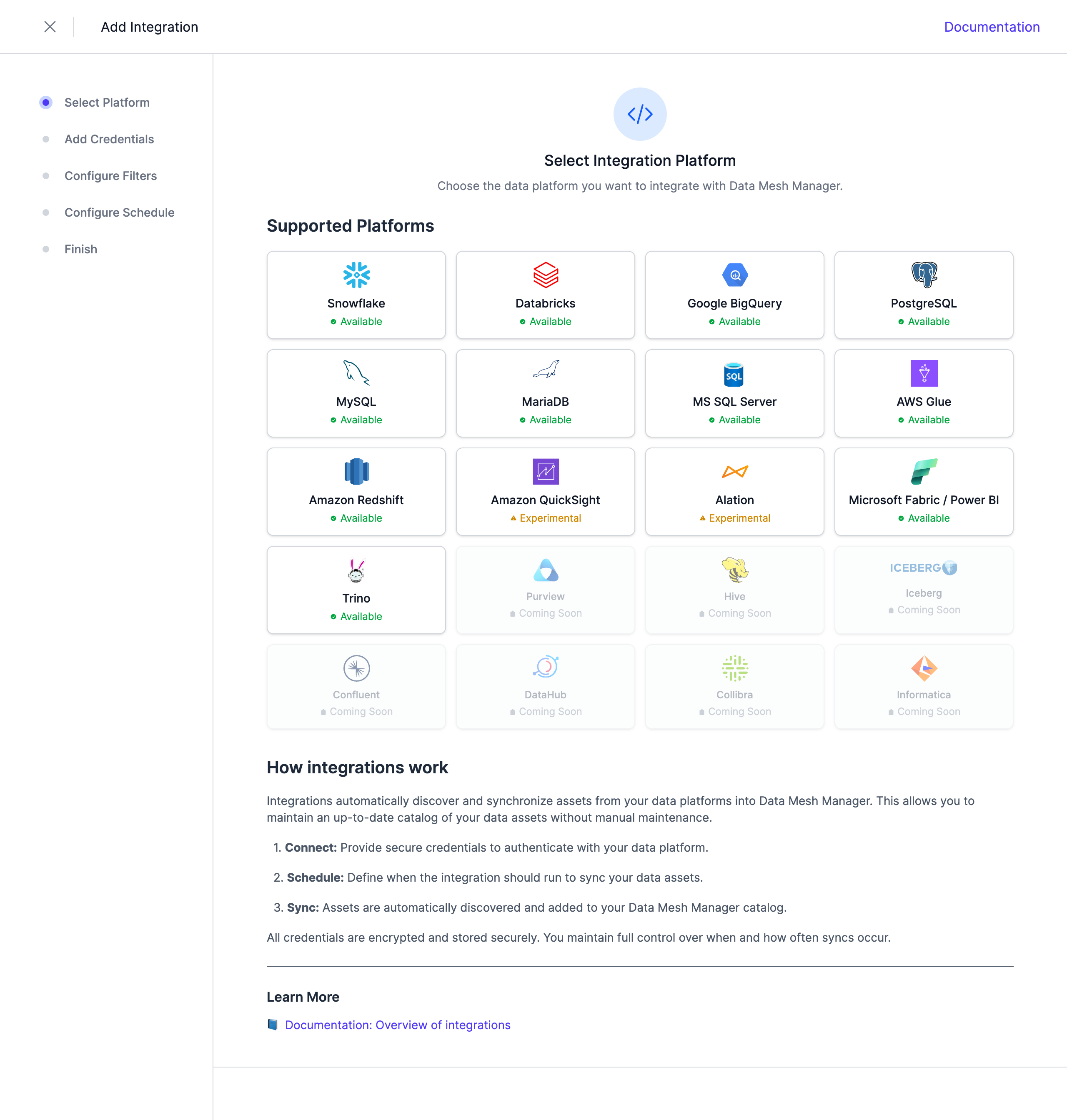
Select PostgreSQL from the list of available integrations.
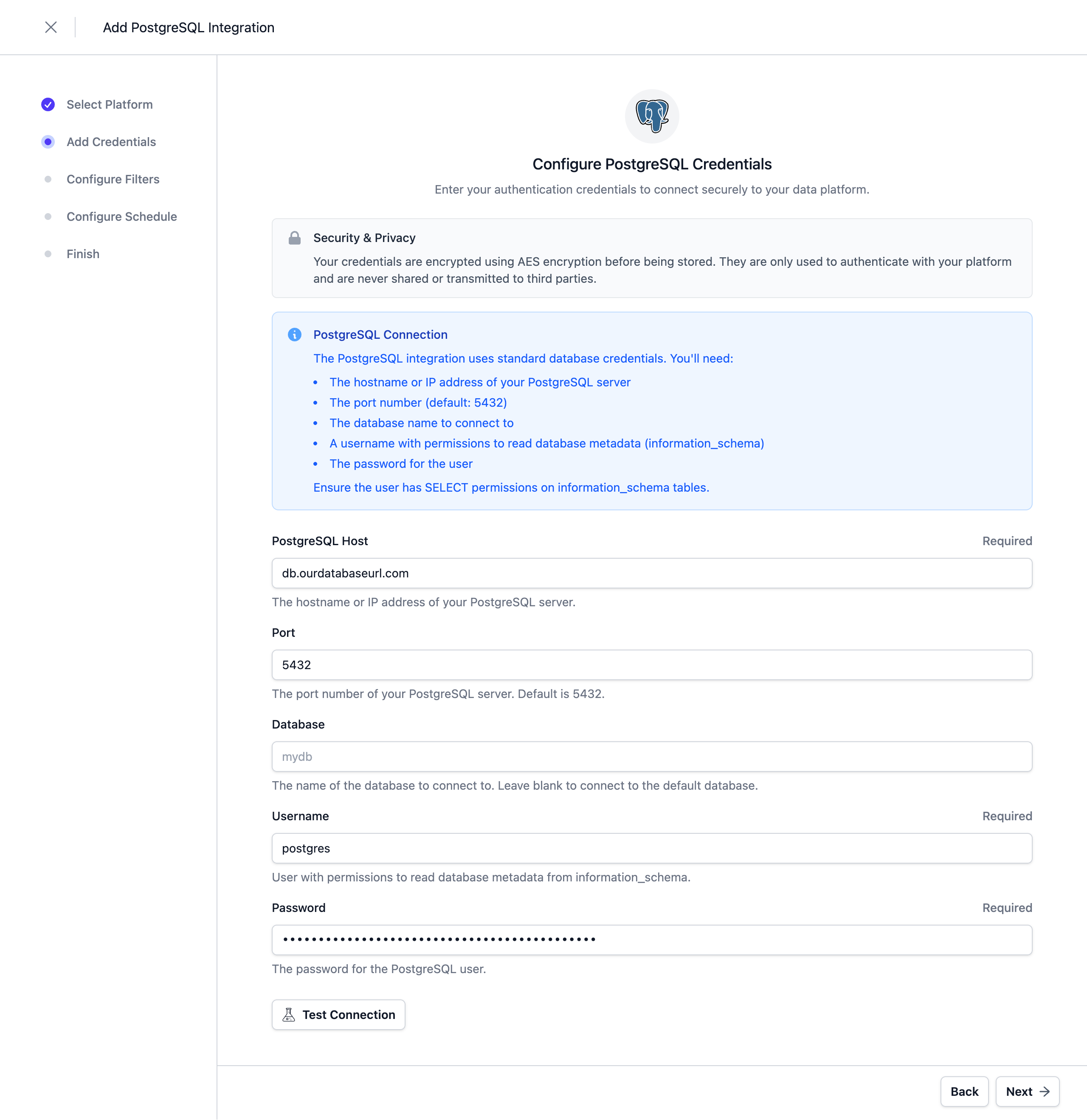
Configure the Connection
Provide the following connection details:
| Parameter | Description |
|---|---|
| Host | The hostname or IP address of the PostgreSQL server |
| Port | The port number (default: 5432) |
| Database | The name of the database to connect to |
| Username | The username for authentication |
| Password | The password for authentication |
Note: Credentials are stored encrypted in the Entropy Data database. To enable encryption in your environment, set a 64 hex character
APPLICATION_ENCRYPTION_KEYSin your environment (see Configuration).
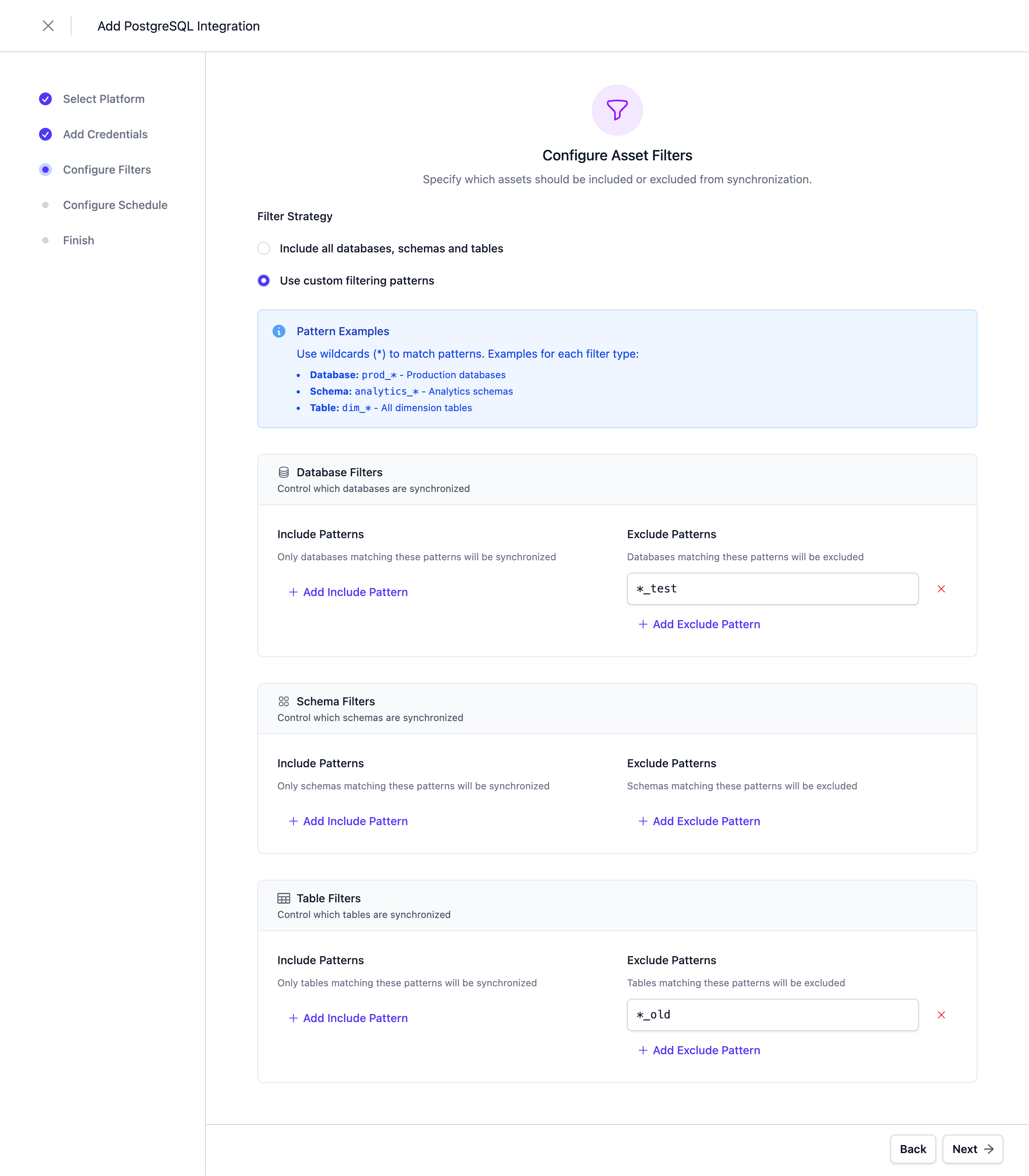
Configure Filters
Configure filters to limit which assets are synchronized. Both include and exclude filters are supported. For PostgreSQL, filters can be applied to Schemas, Tables, and Views.
Filters support '*' as a wildcard character to match any number of characters.
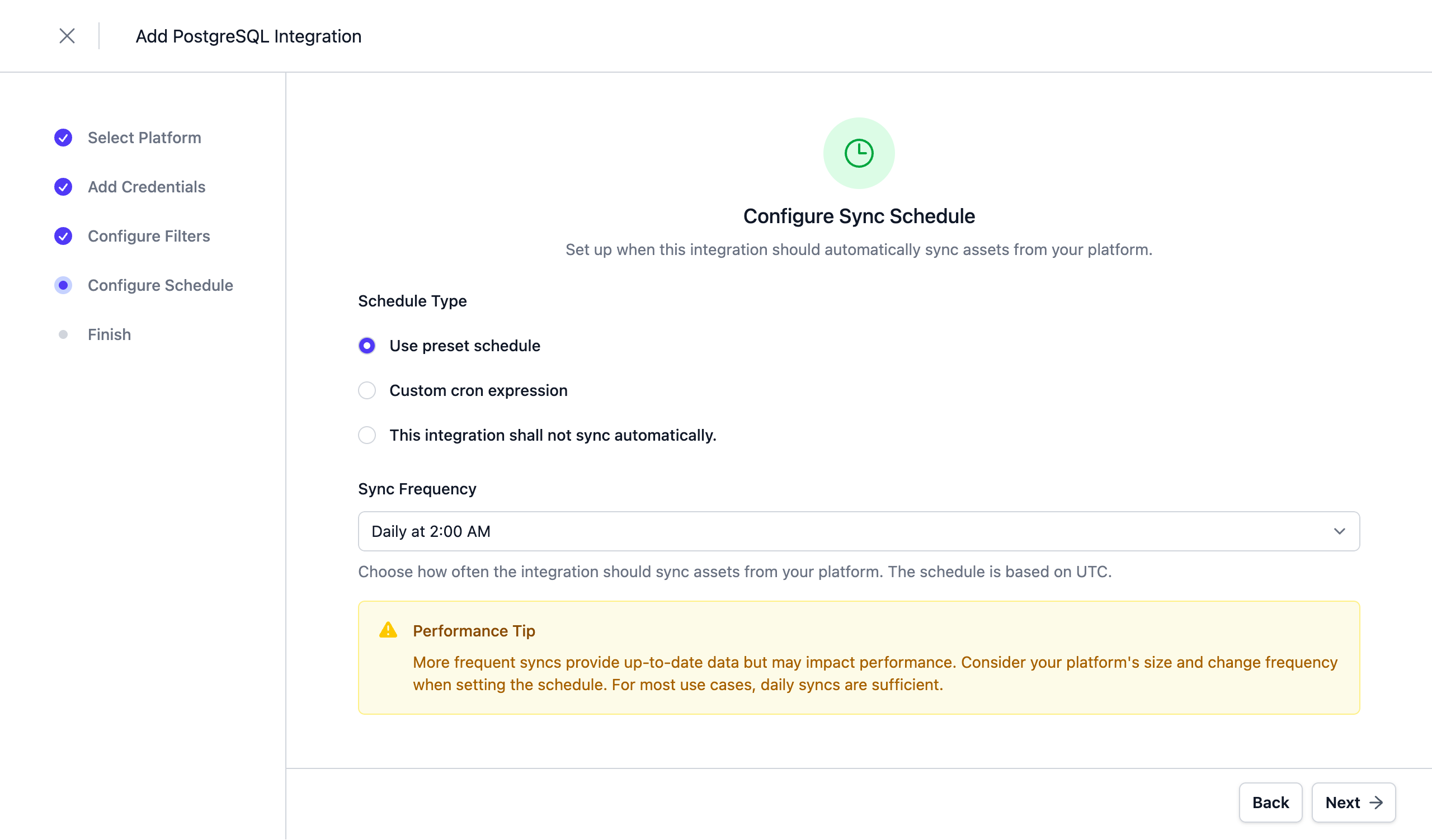
Configure Schedule
Set a schedule to automatically synchronize assets. You can choose from predefined schedules or define a custom schedule using the cron expression format.
Note: All schedules use the UTC timezone, so make sure to take this into account when configuring your schedule. Please do not synchronize the assets more than once or twice per day. We reserve the right to disable the integration if this happens. You will be able to trigger a synchronization manually if you need an immediate update.
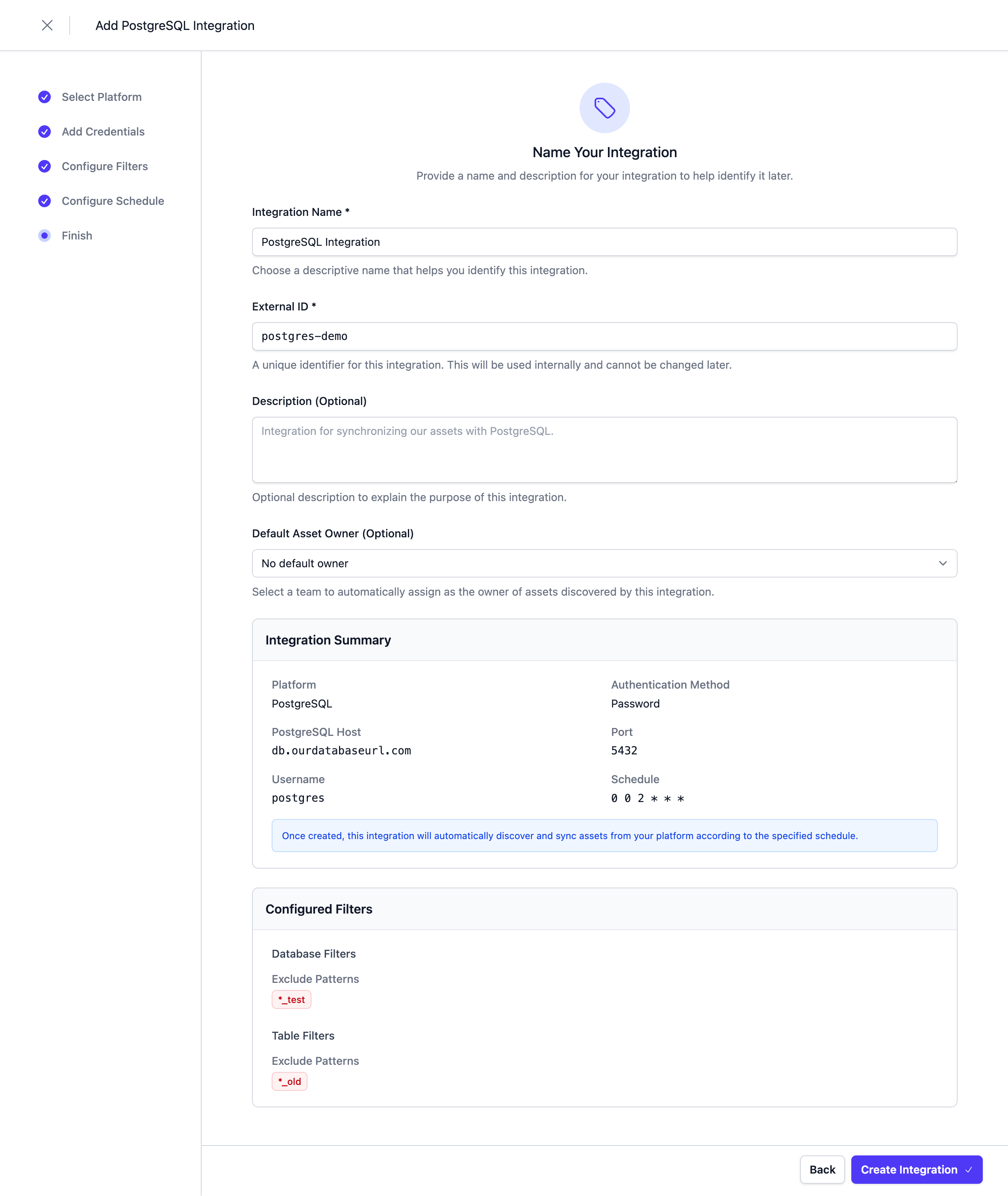
Complete the Integration Configuration
Choose a unique name for the integration, review your configuration, and click Create Integration.
Query Execution
Once a PostgreSQL data product is available, users can execute read-only SQL queries against its output ports through:
- MCP Interface: Use the
execute_querytool to run SQL queries on PostgreSQL output ports. - Entropy Intelligence: Chat-based query execution with automatic connection setup.
To execute queries, each user needs to configure a personal PostgreSQL connection in their profile under Connections. This ensures queries run on behalf of the individual user with their own PostgreSQL credentials and permissions.
Writing Descriptions as Comments
The writing integration is the counterpart of the ingestion: it writes the descriptions of your data contracts to PostgreSQL, whenever a data contract changes. There is no filter and no schedule. To add one, go to Settings > Integrations, click Add Integration and choose Write PostgreSQL Metadata.
What it writes:
- The description of a schema object becomes the comment of the table or view the data contract names, and the description of a property becomes the comment of its column. An element without a description of its own gets the description of the semantic concept it links.
- It writes the tables of every data contract with a
postgresserver on the integration's host and port (5432 when the server names none). The database, schema and table come from the data contract. - A comment the data contract no longer wants is taken back only while it is still the one the integration wrote. A comment written by someone else stays.
- A disabled integration keeps the changes but does not write them.
Prerequisites
The integration connects with a PostgreSQL user of its own. PostgreSQL lets only the owner of a table, or a member of the role that owns it, change its comments. The wizard and the integration page list the GRANT statements the user needs for the tables your data contracts name: CONNECT on each database, USAGE on each schema, and membership in the role that owns the tables. Run them in psql as a superuser or as the owner of the tables.
The database in the connection form is used only to test the connection; the database of each table comes from its data contract.
Status and API
The integration page shows the tables the integration wrote with their state, its queue of pending changes, and the credential. You can also manage it via the REST API under /api/integrations/postgres-metadata:
| Method | Path | Description |
|---|---|---|
GET | /api/integrations/postgres-metadata | List the integrations |
GET | /api/integrations/postgres-metadata/{integration} | Get an integration with its credential (without the password) |
PUT | /api/integrations/postgres-metadata/{integration} | Create or update an integration. Omit the credential to keep the stored one |
DELETE | /api/integrations/postgres-metadata/{integration} | Delete an integration |
GET | /api/integrations/postgres-metadata/{integration}/tables | The tables it writes, with their state and last error |
GET | /api/integrations/postgres-metadata/{integration}/queue | The pending changes |
POST | /api/integrations/postgres-metadata/{integration}/tables/retry-failed | Write the data contracts with failed or unresolved tables again |
POST | /api/integrations/postgres-metadata/{integration}/queue/discard | Discard the pending changes |
The body of a PUT takes name, enabled and a credential with host, port, database, user and password.
Next Steps
The integration is now configured and will run according to the schedule. To check the integration status, navigate to Settings > Integrations. Here you'll find the current status and the last 10 integration runs.
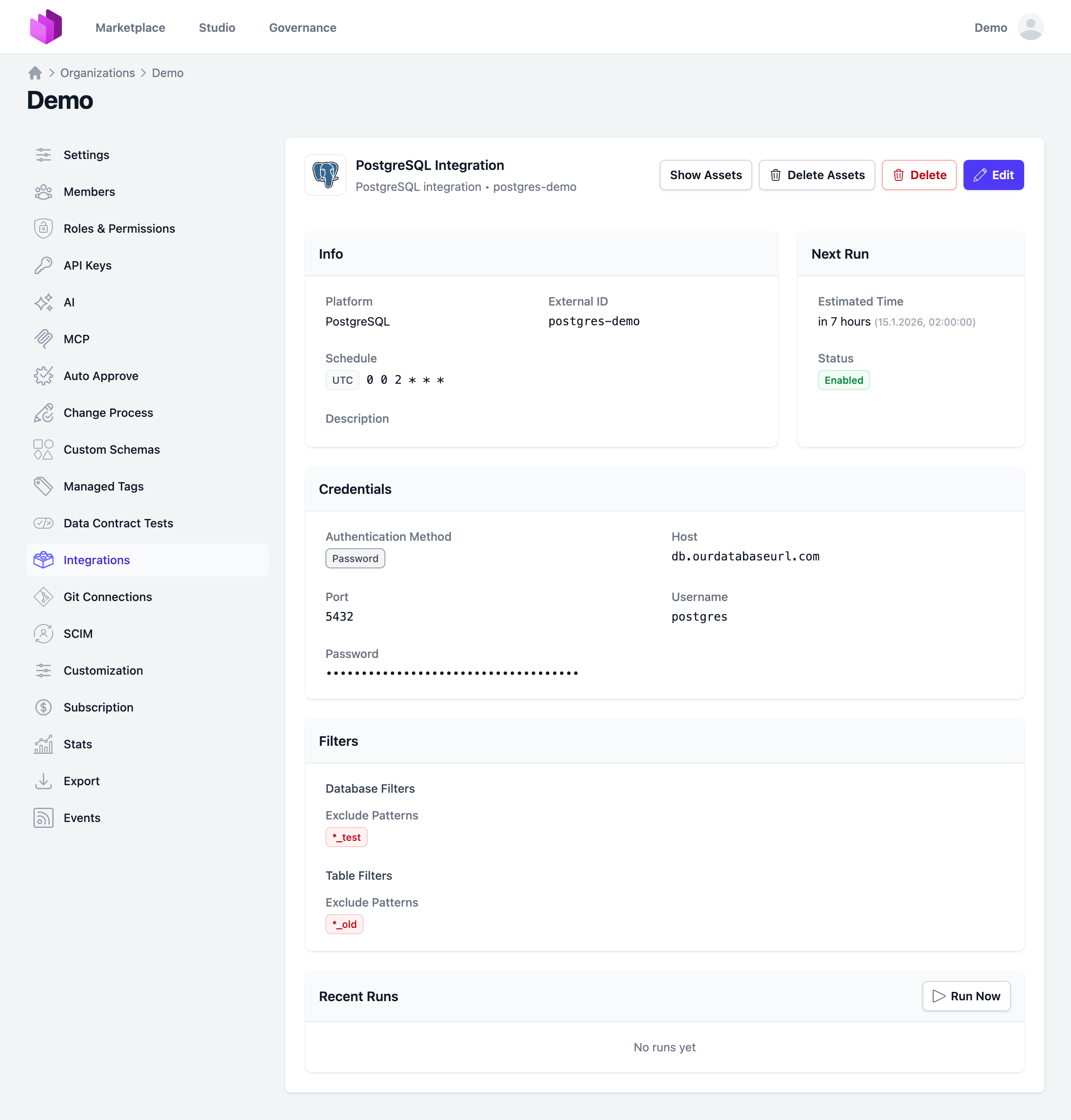 You can adjust the integration configuration at any time. The configuration is saved in YAML format with syntax validation support in the editor.
You can also change and test credentials in the edit view.
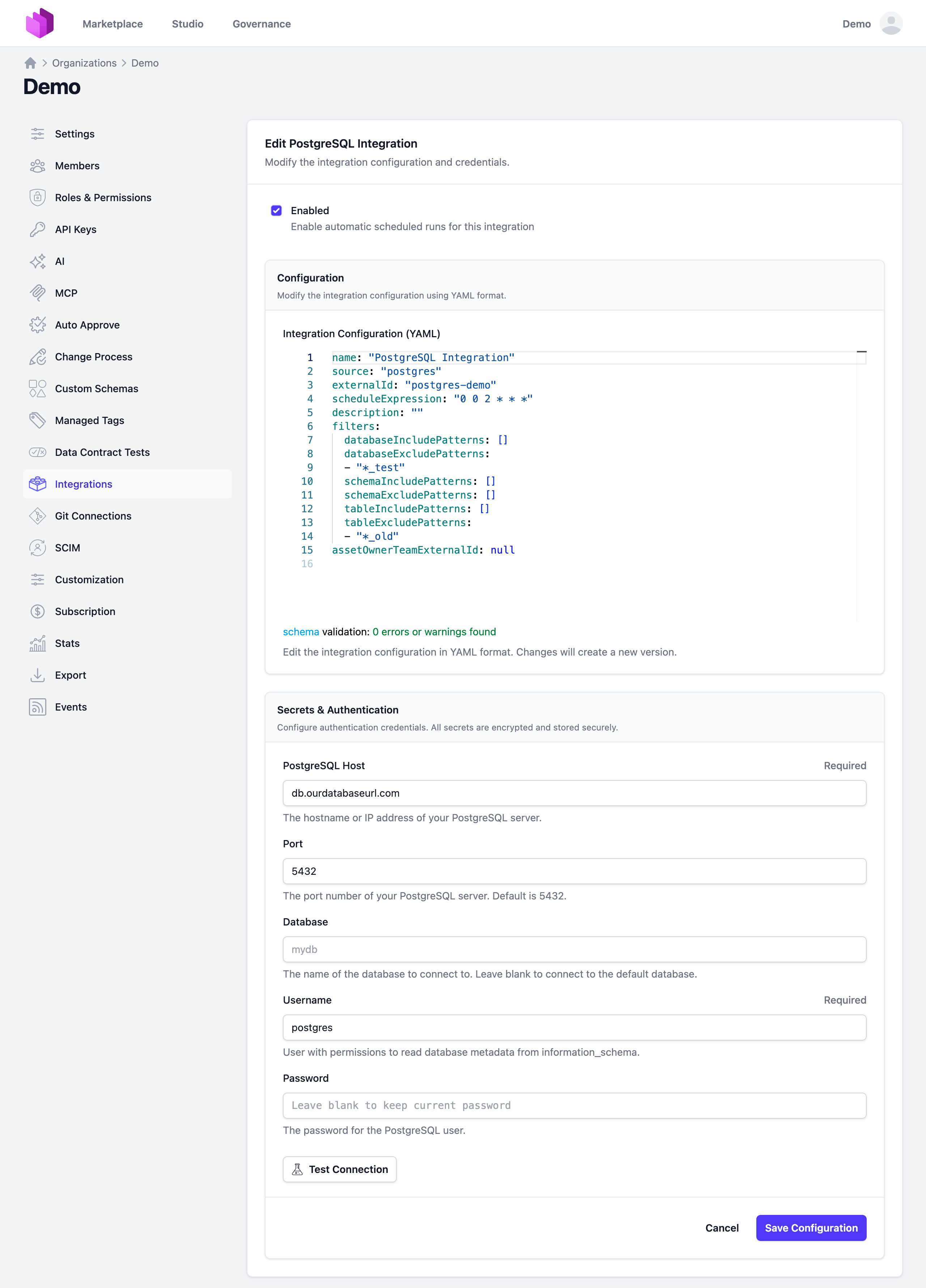
Note: The previously stored credentials are not displayed in the edit view for security reasons. If you want to change them, add new credentials and save the integration.
Deselecting the Enabled checkbox disables the automatic schedule. Manual integration runs are still possible.