
Google Cloud Integration
There are three ways of integrating Google Cloud with Entropy Data.
- The Ingestion reads the projects, datasets, and tables of BigQuery, and the Iceberg catalogs of Lakehouse, as assets, on a schedule.
- The Glossary Writer writes your semantic namespaces to Knowledge Catalog as business glossaries, and links the BigQuery tables and columns of your data contracts to their terms, so the BigQuery data agents know what your data means.
- The Connector syncs assets and applies approved access to BigQuery permissions. It is based on the Entropy Data SDK and runs in your network, for example in a DMZ if you have a complex network topology or governance restrictions do not allow a direct integration.
The ingestion and the glossary writer are built into Entropy Data, so no additional deployments are needed. They need an Entropy Data Enterprise License or the Cloud Edition. You add them under Settings > Integrations. An integration has one purpose, so add one integration per purpose and per Google Cloud project.
| Feature | Ingestion | Glossary Writer | Connector |
|---|---|---|---|
| Direct integration into Entropy Data | ✅ | ✅ | |
| Syncing of assets | ✅ | ✅ | |
| Writing business glossaries to Knowledge Catalog | ✅ | ||
| Syncing of permissions | ✅ | ||
| Complete control of deployment | ✅ | ||
| Support for different network topologies | ✅ |
What is synced
| Direction | Object | Handled by |
|---|---|---|
| Google Cloud → Entropy Data | BigQuery projects, datasets, and tables | the ingestion, on every run |
| Google Cloud → Entropy Data | Lakehouse Iceberg catalogs, namespaces, and tables | the ingestion, on every run, see Lakehouse Iceberg Catalogs |
| Entropy Data → Google Cloud | Semantic namespaces as glossaries, with their categories, terms, and related links | the glossary writer, on every change of a namespace, concept, or relationship |
| Entropy Data → Google Cloud | Definition links from BigQuery tables and columns to terms | the glossary writer, on every data contract change |
| Entropy Data → Google Cloud | Grants on datasets for approved access | the connector |
Ingestion
Select the Integration Type
Navigate to Settings > Integrations > Add Integration. This opens a wizard that guides you through configuring the integration.
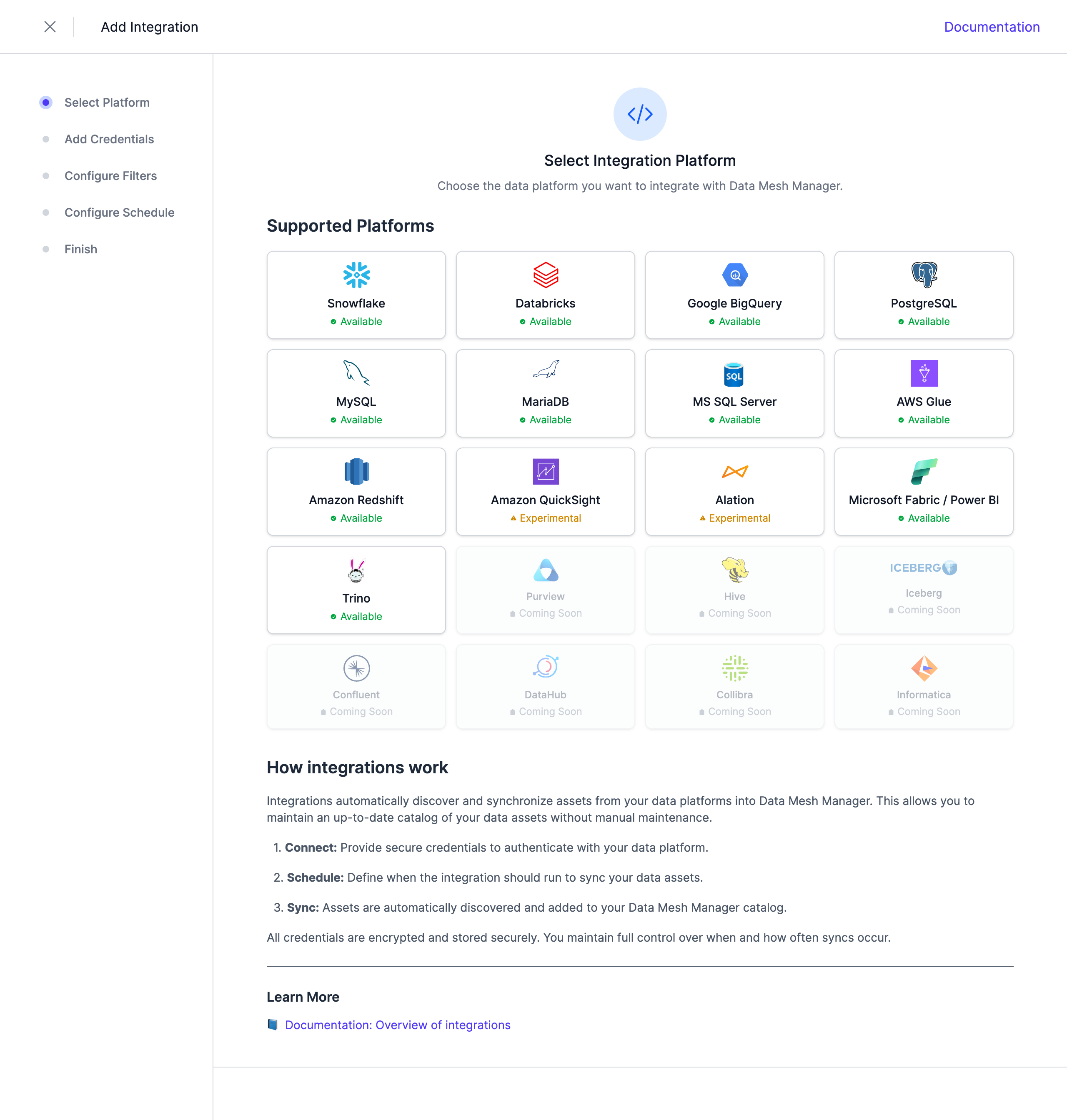 Select Google Cloud from the list of available integrations.
Select the Purpose
Choose Read BigQuery Assets. The other purpose, Write Knowledge Catalog Glossaries, creates a glossary writer.
Configure the Credentials
The BigQuery integration requires a service account and uses the JSON Token File.
Grant the service account the role BigQuery Metadata Viewer (roles/bigquery.metadataViewer) in every project to import. It is enough for the import, which reads no table data.
(The integration will use the BigQuery API, request a token for this service account with the scope https://www.googleapis.com/auth/bigquery.readonly, and lists BigQuery projects, datasets, and tables.)
To also import Lakehouse Iceberg catalogs, grant the service account BigLake Viewer (roles/biglake.viewer) in the project of the catalogs, and Storage Object Viewer (roles/storage.objectViewer) on the Cloud Storage buckets of the catalogs. The Lakehouse API offers no read-only scope, so for its calls the integration requests a second token with the scope https://www.googleapis.com/auth/bigquery. What the service account may do is still limited by its roles.

Then create a new key for the service account and download the JSON key file.

You can drop your downloaded key-file on the upload area or select it via "Upload a file". The credentials will be shown in the dialog. You can now test if the connection works as expected by using the "Test Connection" button.
Note: Credentials are stored encrypted in the Entropy Data database. To enable encryption in your environment, set a 64 hex character
APPLICATION_ENCRYPTION_KEYSin your environment (see Configuration).
Using a Private Service Endpoint (Experimental)
If your organization requires using a Private Service Endpoint for BigQuery connections, you can configure a custom endpoint URL by adding the __customRestClientBaseUrlForTesting property to your credentials JSON file before uploading.
Edit the downloaded JSON key file and add the property with your private endpoint URL, before uploading the JSON:
{
  "type": "service_account",
  "project_id": "your-project-id",
  "private_key_id": "...",
  "private_key": "...",
  "client_email": "...",
  "client_id": "...",
  "auth_uri": "https://accounts.google.com/o/oauth2/auth",
  "token_uri": "https://oauth2.googleapis.com/token",
  "auth_provider_x509_cert_url": "https://www.googleapis.com/oauth2/v1/certs",
  "client_x509_cert_url": "...",
  "universe_domain": "googleapis.com",
  "__customRestClientBaseUrlForTesting": "https://bigquery-your-private-endpoint.p.googleapis.com/bigquery/v2"
}
Replace the URL with your actual Private Service Connect endpoint for BigQuery.
Note: The
__customRestClientBaseUrlForTestingproperty is an experimental feature. The property name may change in future releases.
Configure Filters
Configure filters to limit which assets are synchronized. Both include and exclude filters are supported. For Google BigQuery, filters can be applied to Projects, DataSets, Tables, and Lakehouse Catalogs. The dataset and table filters also apply to the namespaces and tables of a Lakehouse catalog.
Filters support '*' as a wildcard character to match any number of characters.

Configure Schedule
Set a schedule to automatically synchronize assets. You can choose from predefined schedules or define a custom schedule using the cron expression format.
Note: All schedules use the UTC timezone, so make sure to take this into account when configuring your schedule. Please do not synchronize the assets more than once or twice per day. We reserve the right to disable the integration if this happens. You will be able to trigger a synchronization manually if you need an immediate update.

Complete the Integration Configuration

Choose a unique name for the integration, review your configuration, and click Create Integration.
Next Steps
The integration is now configured and will run according to the schedule. To check the integration status, navigate to Settings > Integrations. Here you'll find the current status and the last 10 integration runs.

You can adjust the integration configuration and credentials at any time. The configuration is saved in YAML format with syntax validation support in the editor.

Deselecting the Enabled checkbox disables the automatic schedule. Manual integration runs are still possible.
Lakehouse Iceberg Catalogs
The import of Lakehouse Iceberg catalogs is in preview.
Lakehouse (formerly BigLake metastore) keeps Apache Iceberg tables in catalogs, usually one per Cloud Storage bucket. BigQuery can query these tables as <project>.<catalog>.<namespace>.<table>, but its list of datasets does not show them. So the ingestion reads them through the Iceberg REST catalog of Lakehouse on every run: in each project, after the BigQuery datasets, it reads the catalogs, their namespaces, and their tables.
A project without the BigLake API enabled has no catalogs and is skipped silently.
What is synced
| Object in Lakehouse | Asset in Entropy Data | Notes |
|---|---|---|
| Catalog | biglake_catalog | Child of the bigquery_project. Custom properties project, catalog, catalogUrl, warehouse (the default location of the catalog), region |
| Namespace | biglake_namespace | Child of the catalog. Also namespace |
| Table | biglake_table | Child of the namespace. Also table, format: iceberg, location, metadataLocation, and the columns of the current Iceberg schema, including nested structs, lists, and maps |
The qualified name of a table is <project>.<catalog>.<namespace>.<table>, the name BigQuery queries it by.
Data contract servers
When a data contract is created from a biglake_table asset, it gets an iceberg server (ODCS 3.2.0) that Iceberg clients such as Spark or Trino can open the table with:
servers:
  - server: "production"
    type: "iceberg"
    catalog: "acme-lakehouse"
    catalogUrl: "https://biglake.googleapis.com/iceberg/v1/restcatalog"
    namespace: "sales"
    warehouse: "gs://acme-lakehouse"
BigQuery tables for Apache Iceberg
A table that BigQuery manages in the Iceberg format (created with table_format = 'ICEBERG') is a regular BigQuery table and is synced as a bigquery_table. It gets the custom properties format: iceberg, location (its Cloud Storage URI), and connectionId, and its data contract keeps its bigquery server. It has no Iceberg REST catalog, so it gets no iceberg server.
Notes
- When a permission is missing, the run still succeeds for everything else and carries a note with Google's message, which names the missing permission. A catalog the service account may not list is skipped, and so is a table whose metadata it may not read. Assets from earlier runs are kept in both cases, so nothing disappears because of a permission change.
- With the credential mode
end-user, Lakehouse reads the metadata of a table from Cloud Storage as the service account. That is why it needsStorage Object Vieweron the bucket. - New roles can take a few minutes to apply. A run right after granting them may still report missing permissions.
Glossary Writer
The glossary writer keeps your semantic namespaces as business glossaries in Google Cloud Knowledge Catalog (formerly Dataplex Universal Catalog). Each namespace becomes a glossary, and the concepts become its categories and terms. The semantic links of your data contracts become definition links from the BigQuery tables and columns to the terms.
The BigQuery data agents read the terms of the tables and columns they work with. With the glossary writer, they use the descriptions, formulas, and synonyms you maintain in Entropy Data.
Prerequisites
In the Google Cloud project that holds the glossaries:
- Enable the Dataplex API (
dataplex.googleapis.com) and the Cloud Resource Manager API (cloudresourcemanager.googleapis.com). - Create a service account with the role
Dataplex Catalog Editor(roles/dataplex.catalogEditor) for the glossaries, their terms, and the links. - Grant it
BigQuery Metadata Viewer(roles/bigquery.metadataViewer) in the projects of the linked tables. The glossary writer looks up each table in Knowledge Catalog before it links it, and Knowledge Catalog shows a BigQuery table only to whoever may read its metadata (bigquery.tables.get). Without the role, the links stay unresolved. - Create a JSON key for the service account.
To link tables in other projects, grant the service account both roles in those projects as well. One service account can serve the ingestion, the glossary writer, and the data contract tests.
| Role | Ingestion | Glossary writer | Data contract tests |
|---|---|---|---|
roles/bigquery.metadataViewer | ✅ | ✅ | |
roles/dataplex.catalogEditor | ✅ | ||
roles/bigquery.jobUser | ✅ | ||
roles/bigquery.dataViewer | ✅ | ||
roles/bigquery.readSessionUser | ✅ | ||
roles/biglake.viewer, roles/storage.objectViewer | Lakehouse catalogs only |
Select the Integration Type and Purpose
Navigate to Settings > Integrations > Add Integration, select Google Cloud from the list of available integrations, and choose the purpose Write Knowledge Catalog Glossaries.
Configure the Credentials
| Field | Description |
|---|---|
Name | Shown in the list of integrations. |
Service Account Key | The content of the JSON key file of the service account. |
Project ID | Optional. The project that holds the glossaries. If empty, the glossary writer uses the project of the key. |
Locations | The locations to keep a glossary in, separated by commas or one per line, such as global, europe-west3. Add the locations of your BigQuery datasets. A location the project does not have is refused. See Locations. |
Test Connection requests a token for the service account, reads the glossaries of the project, and checks that the project has the locations.
Note: Credentials are stored encrypted in the Entropy Data database. To enable encryption in your environment, set a 64 hex character
APPLICATION_ENCRYPTION_KEYSin your environment (see Configuration).
Locations
The glossary writer writes one glossary per namespace into each of its locations.
globalis enough for the BigQuery data agents.- Google's agent context shows only terms from a glossary in the same location as the table. Add the location of your BigQuery datasets, such as
europe-west3oreu, so the terms are found there as well. - The glossary writer finds a table in its locations other than
global. Without the location of the dataset, the links of its tables stay unresolved.
A table links the term in its own location. If there is no glossary in that location, it links the term in global.
Complete the Integration Configuration
Choose a unique name for the integration and click Create Integration. The glossary writer then writes every semantic namespace and the links of every data contract on BigQuery. From then on, it writes each change.
You can adjust the integration configuration and credentials at any time. Leave Service Account Key empty to keep the stored key. Deselecting the Enabled checkbox pauses the glossary writer. It keeps the changes and writes them once it is enabled again. Deleting the integration leaves what it wrote in Knowledge Catalog as it is.
Which data contracts are linked
The glossary writer links data contracts in the ODCS format with the status active. Drafts, other statuses, branches, and data contracts in the DCS format are skipped.
A data contract names its tables in its servers. A server needs the type bigquery, a project, and a dataset. If the server names a table or a view, only the schema object with that name is linked, as that table. Otherwise every schema object of the data contract is linked as a table in that dataset, by its physicalName or else its name.
A schema object or a property is linked when it has an authoritative definition of the type semantics that points to a concept:
servers:
  - server: "production"
    type: "bigquery"
    project: "acme-analytics"
    dataset: "shop"
schema:
  - name: "orders"
    authoritativeDefinitions:
      - type: "semantics"
        url: "https://app.entropy-data.com/acme/semantics/retail/order"
    properties:
      - name: "total_amount"
        authoritativeDefinitions:
          - type: "semantics"
            url: "https://app.entropy-data.com/acme/semantics/retail/order.total_amount"
A field in a record is linked by its path, such as customer.address.street. The BigQuery data agents read the terms of tables and top-level columns only.
What is written
| Entropy Data | Knowledge Catalog |
|---|---|
| Semantic namespace | Glossary entropy-<namespace>, named like the namespace |
| Concept of the type group | Category |
| Any other concept | Term |
Relationship relatedTo, measures, derived_from, has_dimension | related link between two terms |
| Semantic link of a schema object or a property in a data contract | definition link from the table or column to the term |
Categories nest at most three levels deep. A deeper group becomes a category on the third level, next to its ancestor there, and is named after the path from that ancestor, such as Fulfilment › Returns. An inline property is named after its owner, such as Order: total_amount, and placed in its owner's category.
The description of a term is what the agents read. It holds the description of the concept, the formula, unit, and direction of a metric, the synonyms, and the allowed values. Knowledge Catalog limits a description to 1 KB, so a longer one is cut.
Each term also carries two aspects for people who browse the catalog:
Overviewholds the full description and a link to the concept in Entropy Data.Entropy Data conceptholds the IRI, the link, the type, the data type, the classification, the examples, the synonyms, the typed relationships, and the translations of the concept.
What is left untouched
- What others wrote. The glossary writer changes and removes only what it wrote itself. Other glossaries, and categories, terms, and links that people or other tools add, are left untouched. So are the definition links that others set on your tables and columns.
- Branches of a namespace are not written.
- Tables that do not exist are not created. A link is unresolved when Knowledge Catalog does not know the table yet, or the namespace has no glossary. If the table is in none of the integration's locations, the page says which location to add. The link is written once the data contract or the concept changes, or when you retry it on the page of the integration.
When it writes
Creating, updating, or deleting a concept, a relationship, or a namespace puts an event in the queue of the glossary writer. So does creating, updating, or deleting a data contract on BigQuery. The glossary writer writes within a minute. Several changes in that time result in one write, and a term or link that did not change is not written again.
A failed write is retried with growing intervals and given up after eight attempts. If the key is refused, the waiting events are given up. If Knowledge Catalog rate-limits the glossary writer, the queue pauses and continues later where it stopped.
When a concept is deleted, its term and its links are removed. When a namespace is deleted, its glossary is removed. When a data contract is no longer active, is deleted, or no longer links a column, the link is removed.
Next Steps
To check the status of the glossary writer, navigate to Settings > Integrations and open the integration. The page shows:
Queue: the pending events, and the events processed in the last 24 hours, with their attempts and errors.Discard pendingdrops the waiting events.Write againputs a processed event back in the queue.Retry given upputs the events given up in the last day back in the queue.Glossaries: each glossary per location, with its categories, terms, and links.Definition Links: the links from your BigQuery tables and columns to the terms. Unresolved and failed links are listed first, with the reason.Retry failedwrites the data contracts with failed or unresolved links again.Credentials: the service account, the project, and the locations, withTest Connection.
Connector
BigQuery Connector is an open-source component that integrates Entropy Data with BigQuery. It is based on the SDK and available as a Docker image. The source code can also be forked to implement custom integrations.
Features
- Asset Synchronization: Sync tables and datasets of BigQuery projects to Entropy Data as Assets.
- Access Management: Listen for AccessActivated and AccessDeactivated events in Entropy Data and grants access on BigQuery datasets to the data consumer.
Links
- Source Code: Entropy Data Connector for BigQuery on GitHub
Data Contract Tests
The Data Contract CLI tests a data contract on BigQuery with a service account and publishes the results to Entropy Data. Grant the service account:
BigQuery Job User(roles/bigquery.jobUser) in the project that runs the queries, to run the checks.BigQuery Data Viewer(roles/bigquery.dataViewer) on the datasets of the data contract, to read the tables. Grant it on the datasets, or in the project with an IAM condition such asresource.name.startsWith("projects/<project>/datasets/<prefix>"), so that the service account reads no other data.BigQuery Read Session User(roles/bigquery.readSessionUser) in the project that runs the queries. The CLI reads the columns through the BigQuery Storage Read API, which needsbigquery.readsessions.create. Without it, the tests fail with a permission error even though the service account may read the tables.
Point the CLI to the JSON key with DATACONTRACT_BIGQUERY_ACCOUNT_INFO_JSON_PATH:
export DATACONTRACT_BIGQUERY_ACCOUNT_INFO_JSON_PATH=/path/to/key.json
datacontract test https://<your-entropy-data-web-host>/<org>/datacontracts/<contract-id> \
                  --publish https://<your-entropy-data-api-host>/api/test-results
New IAM bindings take about a minute to apply. Test without --publish first, so that a run in that minute does not publish failed results.
Query Execution
Once a BigQuery data product is available, users can execute read-only SQL queries against its output ports through:
- MCP Interface: Use the
execute_querytool to run SQL queries on BigQuery output ports. - Entropy Intelligence: Chat-based query execution with automatic connection setup.
To execute queries, each user needs to configure a personal BigQuery connection in their profile under Connections. This ensures queries run on behalf of the individual user with their own BigQuery credentials and permissions.