
Microsoft Fabric Integration
Integration of Microsoft Fabric with Entropy Data.
Experimental. The Microsoft Fabric integration is under active development. Behaviour may still change and some edge cases may not work as expected.
The Fabric integration is managed within Entropy Data. Configure the connection and sync schedule to start syncing with Microsoft Fabric.
No additional deployments are needed.
This page covers setting up the ingestion and what it syncs. Once semantic models and reports are in the catalog, see Power BI for turning them into governed data products, automatic semantic model matching, and business-level lineage. Both are served by the same integration — you set it up once.
Features
- Workspace Synchronization: Sync Fabric workspaces, folders, and every item they contain as Assets.
- OneLake Tables: Drill lakehouses, warehouses, and mirrored databases into their native tables, with full column schemas.
- Power BI Artifacts: Sync semantic models with their tables, reports, and scorecards, including the links between them.
- Connection Details: Capture SQL endpoints and KQL cluster URIs so assets become data products without manual configuration.
Prerequisites
The integration authenticates against the Fabric and Power BI REST APIs using a Microsoft Entra ID Service Principal.
1. Register a Service Principal
Register a new application in Microsoft Entra ID and create a Service Principal for it. Microsoft provides detailed instructions for the registration.
You need three values from the app registration:
- The Tenant ID and Client ID, both on the application's Overview page.
- A Client Secret, created under Certificates & secrets. Copy it immediately — it is shown only once.
Note: These credentials are independent from the Power BI publish settings used by Publish to Power BI. You can reuse the same app registration or register a separate one.
2. Allow Service Principals to call Fabric APIs
- Navigate to the Power BI Admin portal.
- In the left sidebar, select Tenant Settings.
- Find the entry Service principals can call Fabric public APIs.
- Expand the section and select Enabled.
- Optionally restrict the setting to a security group containing the Service Principal.
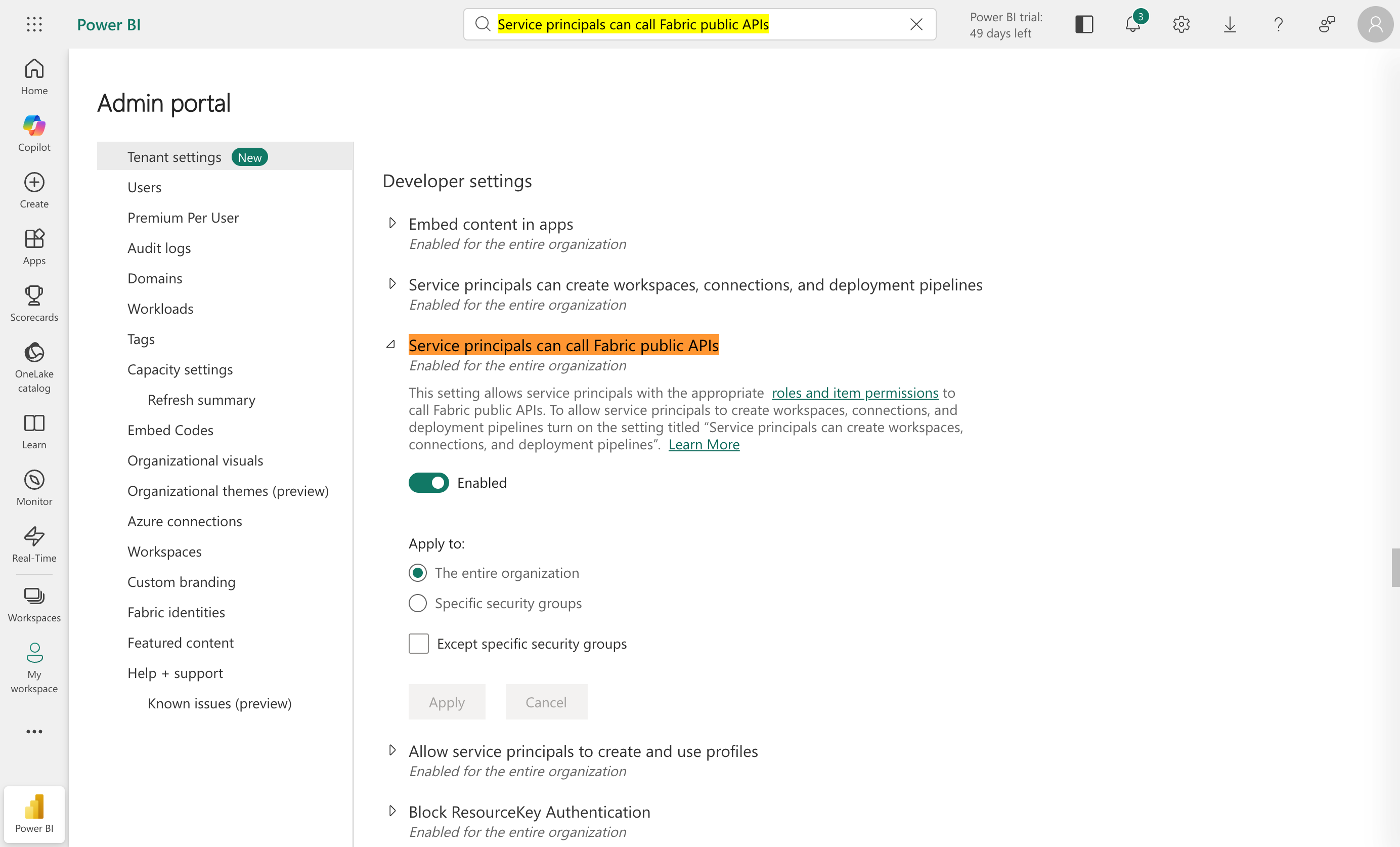
3. Add the Service Principal to each workspace
Open each workspace you want to ingest, navigate to Manage Access → Add People or groups, and add the Service Principal with the Member role or higher.
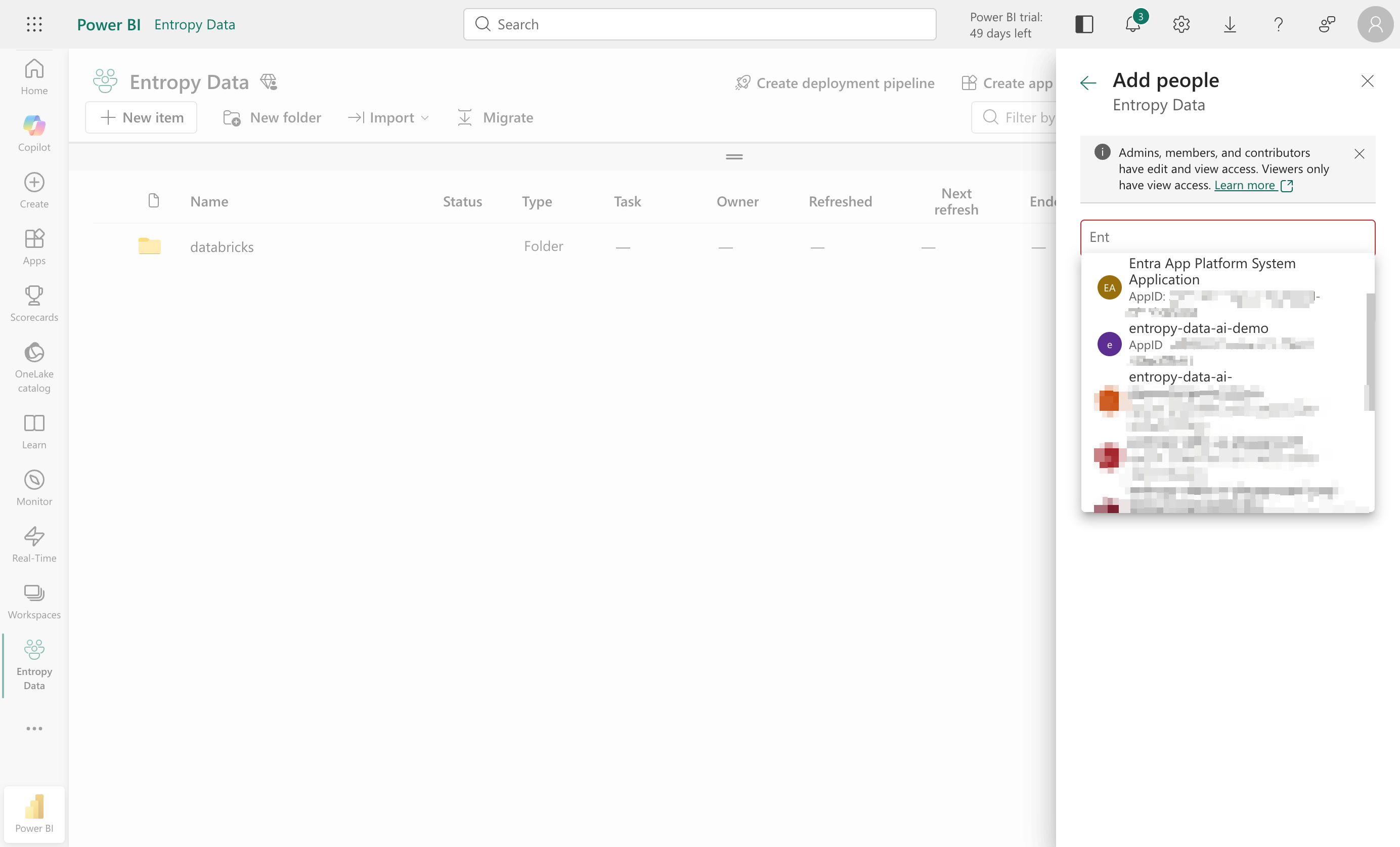
If your Service Principal has tenant-level admin permissions, it will not appear in the people/group search. Microsoft documents how to check whether your app has admin-consent-required permissions. Remove tenant-level permissions to make the principal selectable at workspace level.
Configuration
To start, navigate to Settings > Integrations > Add Integration.
This opens a wizard that guides you through configuring the integration.
Select the Integration Type
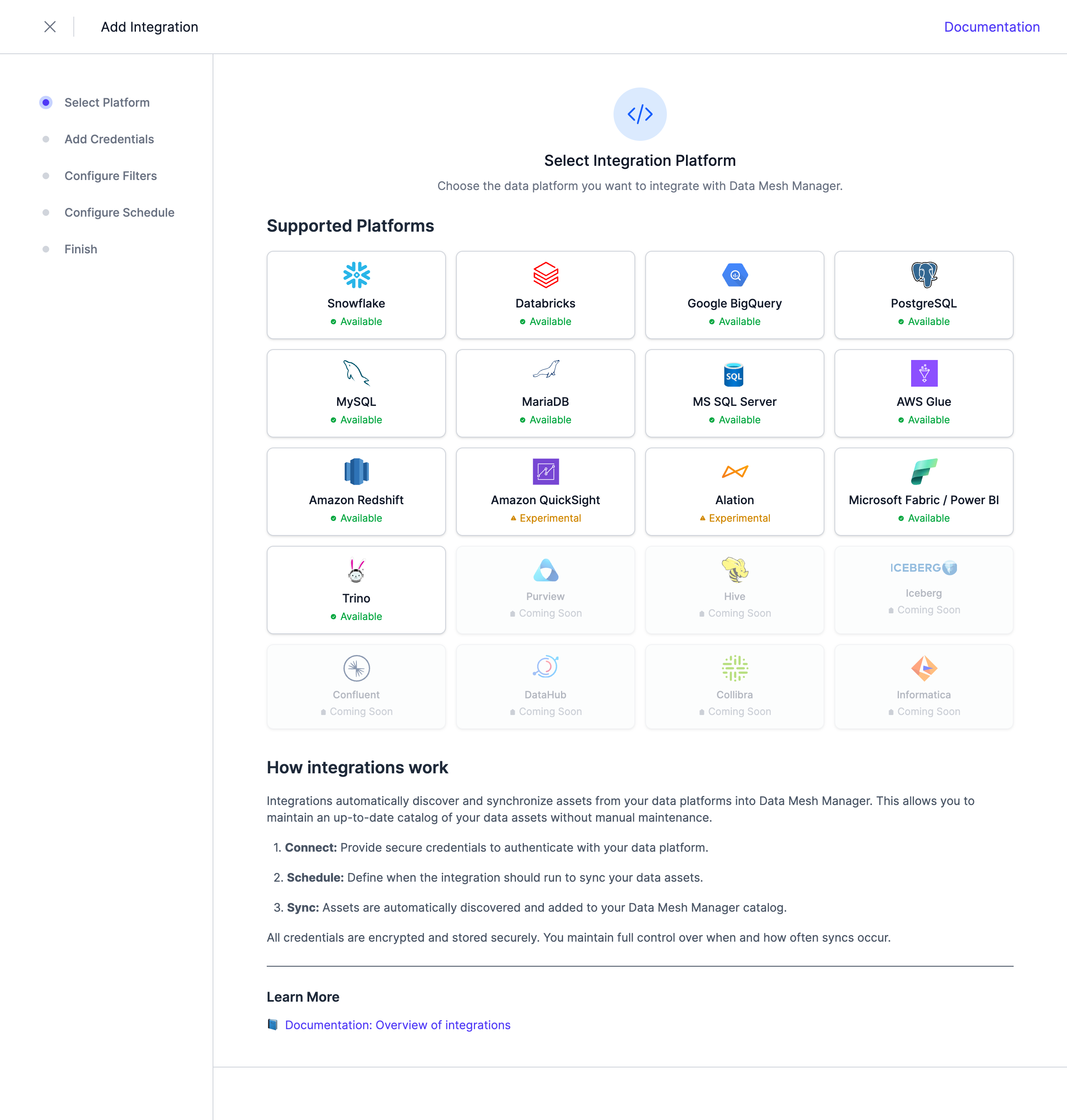
Select Fabric/Power BI from the list of available integrations.
Configure the Credentials
Provide the following connection details:
| Parameter | Description |
|---|---|
| Tenant ID | The Microsoft Entra Tenant ID |
| Client ID | The Client ID of the app registration |
| Client Secret | The Client Secret of that app registration |
Note: Credentials are stored encrypted in the Entropy Data database. To enable encryption in your environment, set a 64 hex character
APPLICATION_ENCRYPTION_KEYSin your environment (see Configuration).
Configure Filters
Configure filters to limit which assets are synchronized. Both include and exclude filters are supported. For Fabric, filters can be applied to Workspaces, Semantic Models, Reports, and OneLake paths.
Filters support '*' as a wildcard character to match any number of characters. An exclude pattern always wins over an include pattern, and an empty include list includes everything at that level. Workspace, semantic model, and report names are matched case-insensitively.
| Filter | Example | Matches |
|---|---|---|
| Workspace | Sales* | All Sales workspaces |
| Semantic Model | *Adventure* | Models with "Adventure" in the name |
| Report | Dashboard* | Reports starting with "Dashboard" |
| OneLake path | Tables/sales* | Tables starting with "sales" |
Items without a filter of their own — lakehouses, notebooks, pipelines — are governed by the workspace filter alone.
OneLake contents
The OneLake Contents section controls how deeply OneLake-backed items are traversed. Managed tables are always ingested. Files are not, because a OneLake Files tree can hold hundreds of thousands of objects.
Enable Ingest OneLake files to include them, and pair it with path patterns to keep the scope useful — Files/raw/** selects everything under a raw folder.
Configure Schedule
Set a schedule to automatically synchronize assets. You can choose from predefined schedules or define a custom schedule using the cron expression format.
Note: All schedules use the UTC timezone, so make sure to take this into account when configuring your schedule. Please do not synchronize the assets more than once or twice per day. We reserve the right to disable the integration if this happens. You will be able to trigger a synchronization manually if you need an immediate update.
Complete the Integration Configuration
Choose a unique name for the integration, review your configuration, and click Create Integration.
What is ingested
Assets are nested to mirror the Fabric hierarchy: a workspace contains folders, folders contain items, and OneLake-backed items contain their tables and files. Workspaces and folders that are empty after filtering are not ingested, so restricting filters keeps the catalog clean rather than leaving empty containers behind.
Fabric items
Every item in a workspace is ingested as an asset typed by its Fabric item type: lakehouses, warehouses, SQL databases and endpoints, mirrored databases, KQL databases and eventhouses, notebooks, data pipelines, dataflows, ML models and experiments, eventstreams, GraphQL APIs, and more. Item types Microsoft adds after your Entropy Data version was released are still ingested, under a generic item type, so a new Fabric feature never causes an ingestion to drop assets.
Items that expose a connection endpoint carry it in their custom properties, ready to be used when you turn the asset into a data product:
| Item | Connection details captured |
|---|---|
| Lakehouse | SQL endpoint connection string and ID, default schema, OneLake URI |
| Warehouse, SQL database, mirrored database | SQL connection string, default schema, OneLake URI |
| KQL database, eventhouse | KQL cluster URI, database name, OneLake URI |
OneLake tables and files
Items backed by OneLake — lakehouses, warehouses, mirrored databases, KQL databases, datamarts — are drilled into their native tables. Each table is ingested as its own asset with a full column schema, so you can put a lakehouse table under a data contract exactly as you would a Snowflake table.
Eventhouse / KQL database tables. Tables of a KQL database in an eventhouse are ingested only when OneLake availability is turned on for the database (or individual tables) in Microsoft Fabric: open the KQL database, and in the OneLake section of the details pane set Availability to Enabled — ideally with Apply to existing tables checked. Without it, the tables have no OneLake footprint and will not appear as assets. Newly mirrored data can take up to a few hours to land in OneLake, so tables may show up one integration run later. See Microsoft's documentation for details.
Power BI artifacts
- Semantic models, with each of their tables ingested as a child asset carrying the model's columns, calculated columns, and measures.
- Reports, linked to the semantic model they are built on — including across workspaces.
- Scorecards, linked to both their semantic model and their report.
These links produce the business-level lineage from source data product through semantic model to report.
A semantic model whose definition cannot be read — internal datasets backing a scorecard, push datasets, usage-metrics datasets — is still ingested, but without its tables. It appears in the catalog so that reports depending on it keep a resolvable link.
Partial failures
When the integration cannot see everything — the Service Principal lacks access to a workspace, an item cannot be read, or OneLake is unreachable — the run still succeeds, but Entropy Data skips the cleanup step that normally deletes assets it no longer finds at the source. Previously ingested assets are left in place rather than deleted because of a temporary loss of visibility.
Next Steps
The integration is now configured and will run according to the schedule. To check the integration status, navigate to Settings > Integrations. Here you'll find the current status and the last 10 integration runs.
You can adjust the integration configuration at any time. The configuration is saved in YAML format with syntax validation support in the editor.
Note: The previously stored credentials are not displayed in the edit view for security reasons. If you want to change them, add new credentials and save the integration.
Deselecting the Enabled checkbox disables the automatic schedule. Manual integration runs are still possible.
From here: