
Power BI Integration
Import Power BI Semantic Models and Power BI Reports into Entropy Data, and turn them into governed data products.
Experimental. The Power BI integration is under active development. Behaviour may still change and some edge cases may not work as expected.
The Power BI integration ingests semantic models and reports from one or more Power BI workspaces into Entropy Data as assets. From there, you can create data products of type Power BI Semantic Model or Power BI Report to manage them like any other data product in your organization.
This page covers the standard Power BI integration that ingests assets into Entropy Data. It is separate from Publish to Power BI, the user-triggered feature that publishes Entropy Data data products into Power BI as new semantic models. The two are complementary: publish governed data products into Power BI for analysis, and import the resulting semantic models and reports back here so they remain part of your data product catalog.
When to import a Power BI asset as a Data Product
We recommend creating a data product for a Power BI Semantic Model or Report whenever the asset is not just used internally but is something you want to keep track of across the organization. This lets you see which reports use which semantic models, and how those connect to other data products in your company.
Reports relevant to running your business — especially those published to other organizational units — should be part of the data products in Entropy Data. You then get the full power of Entropy Data to make these data products discoverable: classification, quality metrics, status, confidentiality, and more — all available for a Power BI data product to drive adoption and clarity for your business.
We do not recommend mirroring the complete Power BI workspace structure in Entropy Data. Internal reports and experimental semantic models can stay solely in Power BI, since ownership, access, and governance are not yet needed at that stage.
Setting up the integration
Semantic models and reports reach Entropy Data through the Microsoft Fabric integration. Follow that guide to register a Service Principal, allow it to call the Fabric APIs, add it to your workspaces, and configure the ingestion — then return here to work with what it syncs.
If you already use the Custom Entra application option for Publish to Power BI, you can reuse that application or register a separate one for the import.
Once the integration has run, you can review its status and the last 10 runs under Settings > Integrations.
Power BI Semantic Models and Reports as Data Products
Each integration run imports the semantic models and reports from the configured workspaces as assets in Entropy Data. From an asset, you can create a data product to govern it.
Importing a Semantic Model as a Data Product
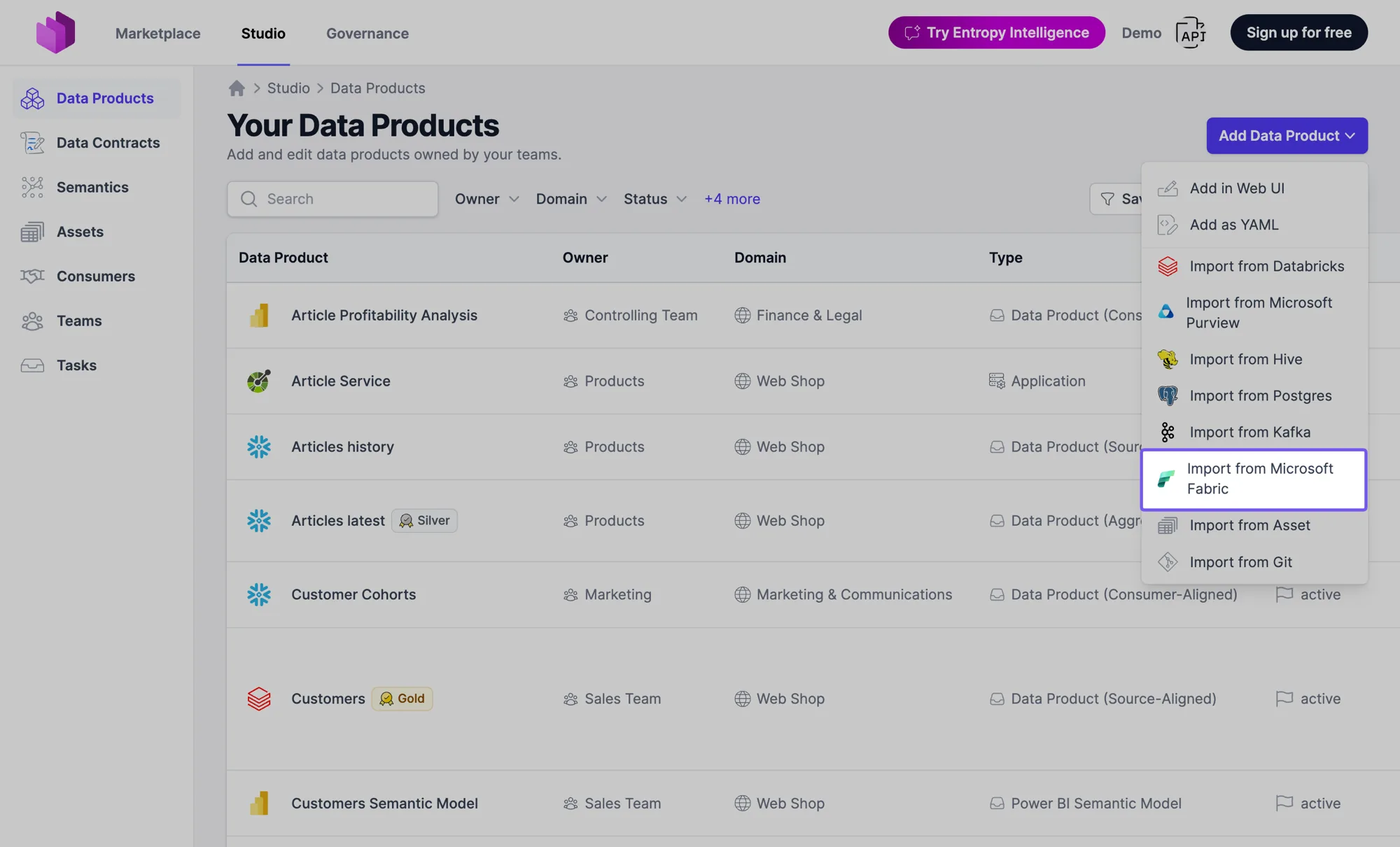
After the first integration run, ingested semantic models are available as the source for new data products. Navigate to Studio > Data Products > Add Data Product and select Import from Microsoft Fabric to create a data product of type Power BI Semantic Model. The data product's output port reflects the structure of the semantic model, so consumers can see which tables and columns are exposed.
If the semantic model is built on data that is already governed by a data contract in Entropy Data, you often don't need to start here — see Automatic semantic model matching for the guided path.
Automatic semantic model matching
When you put one of your data products under a data contract, Entropy Data can recognize that an already-ingested Power BI semantic model is built on exactly that data — and offer to bring it into your catalog as a governed data product.
The match banner
For any output port that is under a data contract, Entropy Data compares the contract's schema against every Power BI semantic model ingested from your Fabric workspaces. When it finds one or more semantic models whose tables match, a banner appears on the output port reading "We found one semantic model using this output port." — or "We found several semantic models using this output port." when there is more than one match. The banner offers an Import as Power BI Semantic Model button.
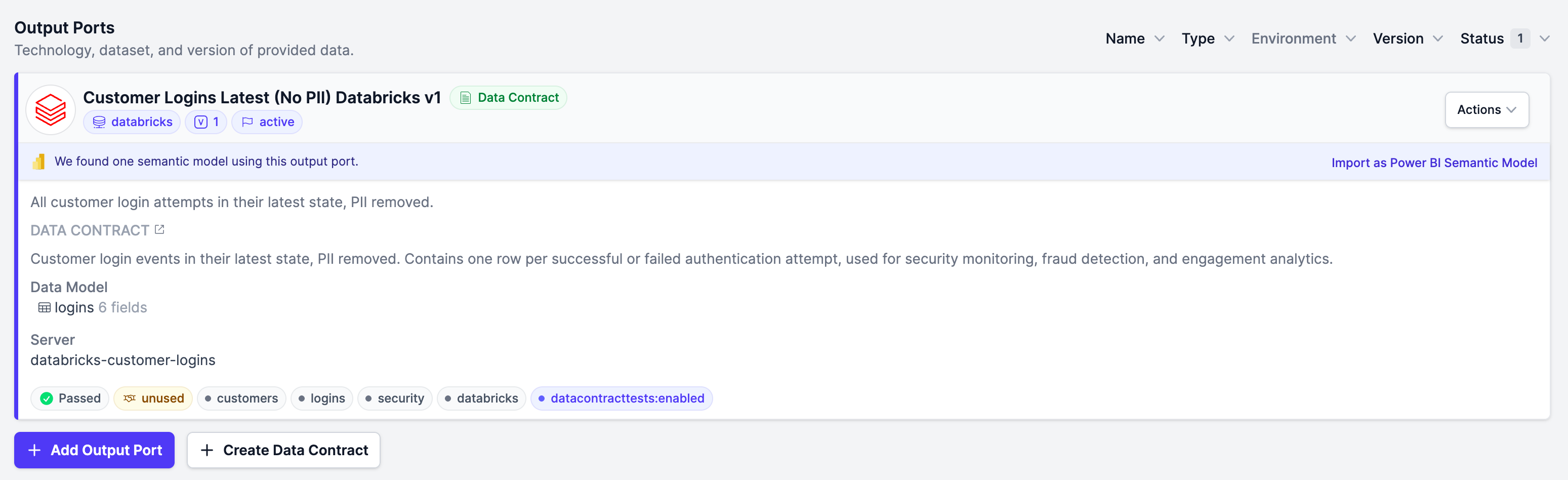
The banner is shown both on the output port detail page and on the output port card of the data product page. It is hidden when:
- the output port has no data contract,
- the output port is itself a Power BI Semantic Model or Power BI Report,
- the output port is already linked to a Power BI semantic model, or
- you are viewing the data product in the Marketplace — importing a match is a producer action.
How tables are matched
A table of an ingested semantic model counts as a match for a data contract schema only when all of the following hold:
- Same columns — the set of column names is identical, compared case-insensitively.
- Same types — every column's physical type normalizes to the same type family. Entropy Data maps vendor-specific types onto a shared family, so that, for example,
varchar(255)matchesstringandbigintmatchesint64. The families are string, integer, number, date, datetime, time, boolean, binary, object, and array. - Same source kind — the data source behind the semantic model's table matches the contract's server type. The source kind (for example Snowflake or Databricks) is read from the table's TMDL partition expression during ingestion; the contract's server type comes from its ODCS
serversentry, falling back to the output port type.
A semantic model is offered as a match when at least one of its tables matches one of the contract's schemas.
The source kind is only captured by recent ingestion runs. Power BI semantic models ingested before this was added will not produce matches — re-run the Fabric integration to populate it.
Importing a matched semantic model
Selecting Import as Power BI Semantic Model opens a focused import wizard, pre-scoped to just the matched semantic model and its tables: "We found Power BI semantic models whose tables match the schema of this data contract. Pick one to import as a data product."
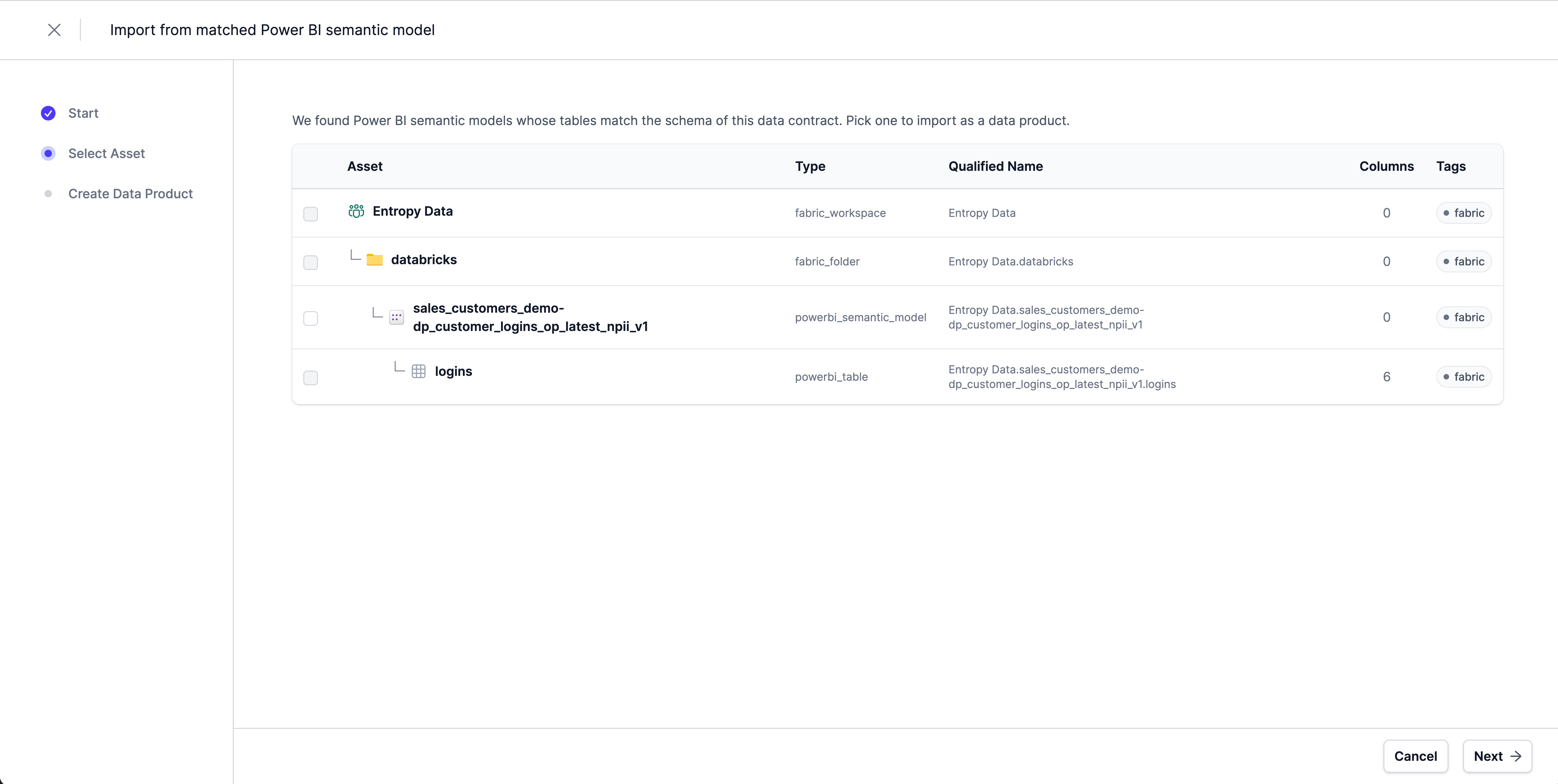
The wizard walks through Start → Select Asset → Create Data Product. On completion it:
- creates a new data product of type Power BI Semantic Model, and
- records an approved data usage agreement from the source output port to the new semantic model data product.
That data usage agreement is what places the Power BI semantic model downstream of your source data product in lineage — you immediately see which Power BI model consumes the output port. The agreement is created only once: if the output port is already connected to the semantic model, no duplicate is added.
Exploring an imported semantic model
A data product created from a Power BI semantic model has a single output port that represents the model. Its data product page shows an Output Port card — "Semantic model exposed by this data product." — and what it displays below depends on whether that output port is under a data contract.
Without a data contract
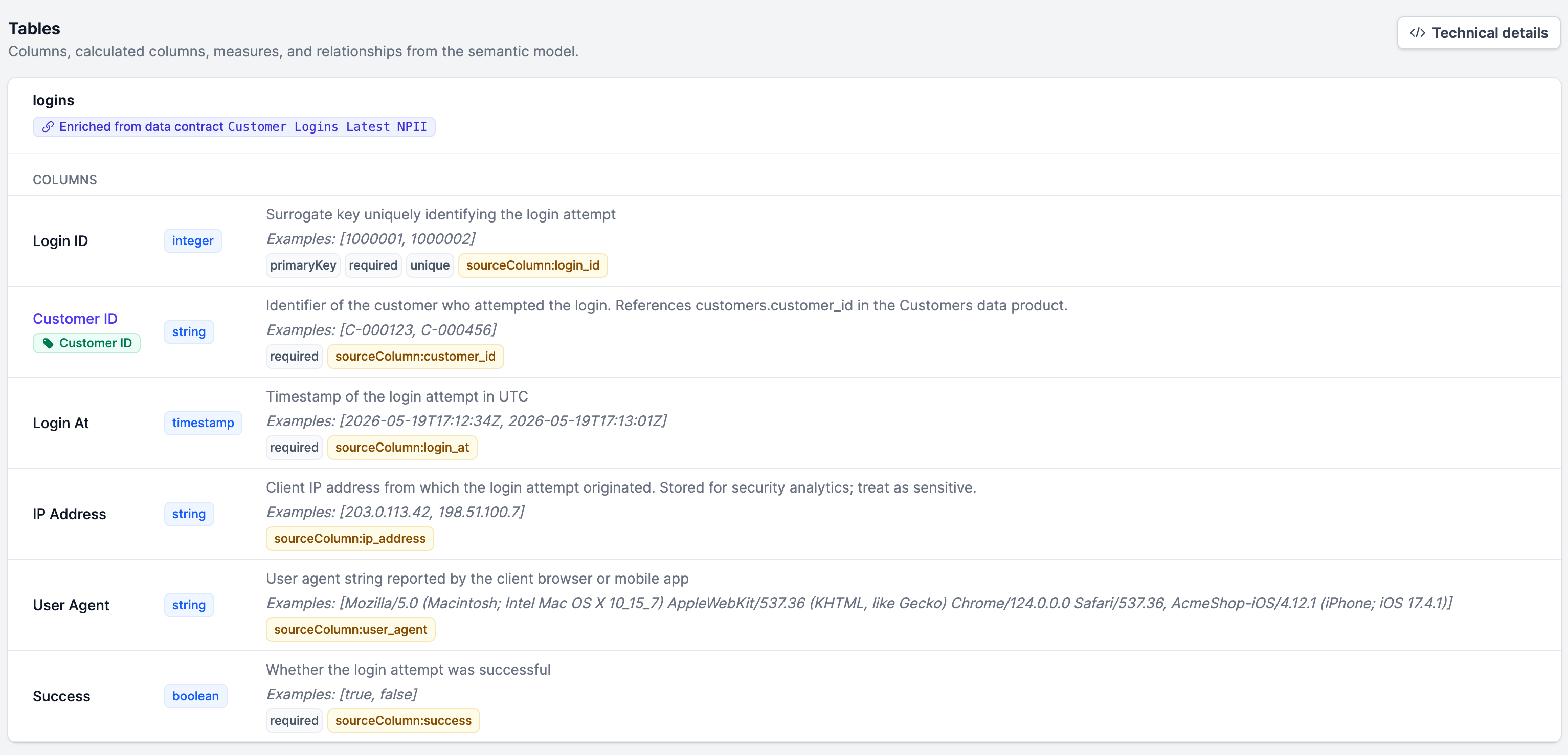
When the output port has no data contract, Entropy Data renders a live Tables preview built directly from the ingested semantic model assets — "Columns, calculated columns, measures, and relationships from the semantic model." For each table it shows:
- Columns — the regular columns of the table.
- Calculated columns — columns defined by a DAX expression, shown with their
= expression. - Measures — DAX measures, shown with their expression.
- Relationships — a separate card listing the table-to-table relationships defined in the model.
A Technical details toggle reveals the physical column names, and columns hidden in Power BI carry a hidden badge. The preview reflects the most recent ingestion run; if no tables have been ingested yet it shows "No tables in this semantic model yet."
Under a data contract
Once you put the output port under a data contract, the data contract becomes the source of truth for the schema, and the live asset-derived preview is no longer shown. The output port card instead shows a green Data Contract badge linking to the contract, together with a Data Model list of the contract's tables and their field counts. The full schema lives on the data contract page.
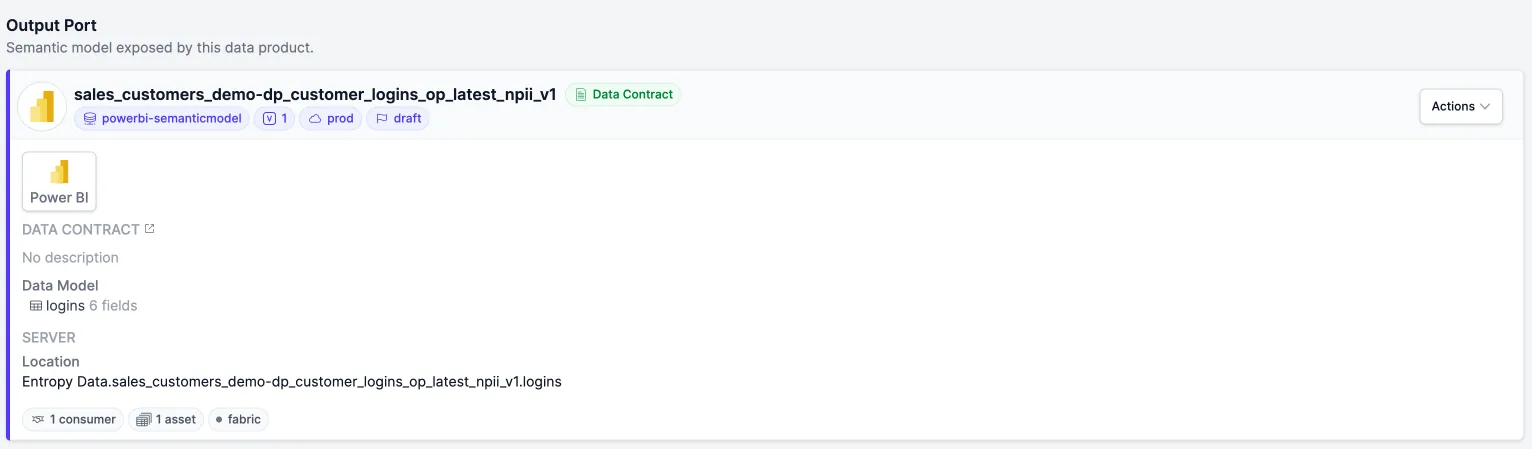
Putting the semantic model under contract is the recommended end state: the contract gives you versioning, quality checks, and a stable, governed interface — whereas the asset-derived preview is best understood as a quick look at what was ingested.
How columns are enriched
Columns ingested from Power BI carry only the metadata Power BI itself stores — names and types, but rarely business descriptions. To close that gap, Entropy Data enriches the preview from the data contracts of the upstream data products that feed the semantic model.
For each table in the preview, Entropy Data looks at the data contracts attached to the data product's input ports and picks the best-matching one by column-name overlap: names are normalized (lower-cased, punctuation removed), and a contract schema is accepted as the match when it shares at least two columns with the table and covers at least half of the table's columns.
When a match is found, the table shows an Enriched from data contract X badge, and its matched columns inherit the upstream definitions — business name, description, logical type, primary-key flag, classification, tags, and semantic links. Only regular columns are enriched; measures and calculated columns are not. If no upstream contract matches, columns are shown with their Power BI metadata only.
This means a Power BI semantic model data product can present meaningful, business-readable column documentation before anyone authors a data contract for it — the descriptions flow automatically from the source data products it was built on.
Business-level lineage with Power BI
When semantic models and reports are imported as data products, lineage in Entropy Data spans from the underlying source data product all the way to the consuming Power BI report:
- A Snowflake or Databricks source data product feeds a Power BI Semantic Model data product.
- One or more Power BI Report data products consume the semantic model.
- Each step shows ownership, classification, and access on the data product page.
Combined with the Publish to Power BI feature, you get a single, business-level view of how data flows from your operational sources, through governed Power BI semantic models, into the reports your business runs on.