
Email Templates
SaaS Self-hostedEntropy Data sends emails on behalf of your organization, for example when access to a data product is requested or when a data contract quality check fails. Organization owners can customize the wording of these emails per language, or disable individual emails entirely. Emails without a customization use the built-in wording.
To manage email templates:
- Navigate to Organization Settings (click on your organization name in the top navigation, then select "Settings")
- Go to the Email Templates page
The overview shows every email the organization sends, with its current status: Default, Customized (per language), or Disabled.
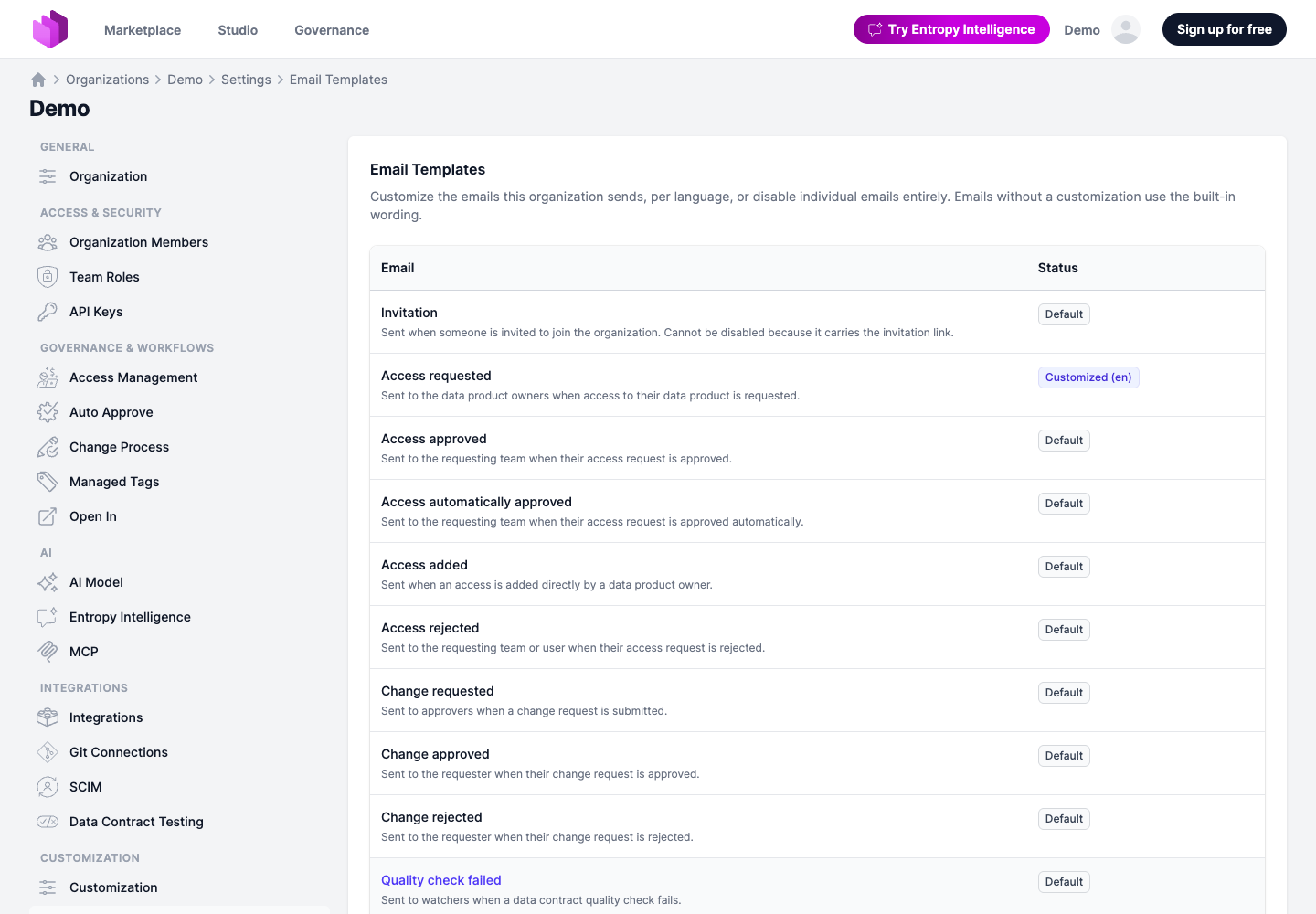
Customizing a Template
Select an email to open its editor, pick the language tab you want to change, and switch on Customize this template. The editor starts with the built-in wording, so you can adjust it instead of writing from scratch.
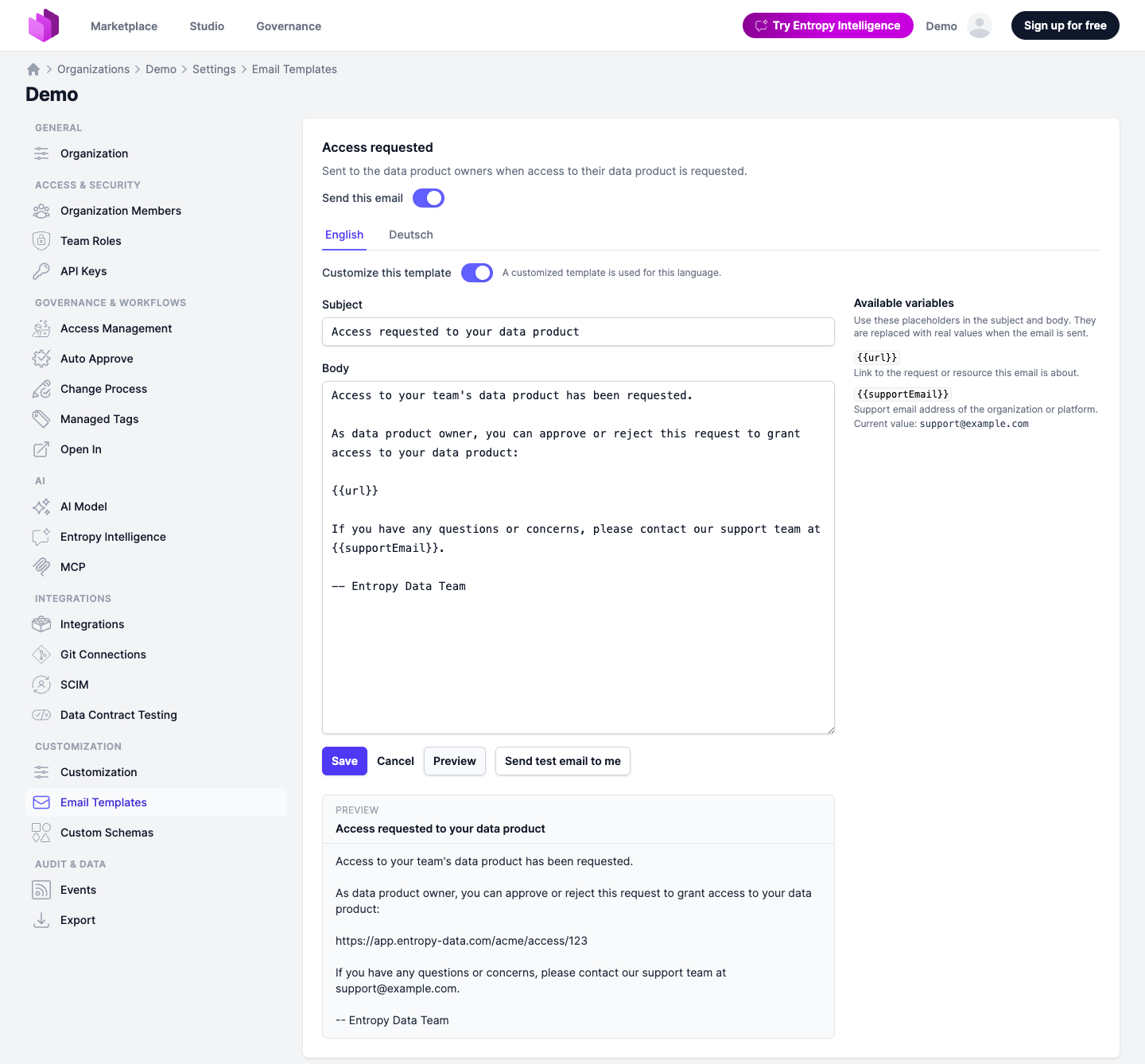
While editing:
- Preview renders the current subject and body with sample data, so you can check the result before saving.
- Send test email to me sends the rendered email to your own address.
- Save activates the customization for this email and language.
To return to the built-in wording, switch Customize this template off. This removes the customization for the selected language after a confirmation.
Template Syntax
Templates are plain text with two constructs:
{{variable}}inserts a value when the email is sent, for example the link to an access request.{{#if variable}}...{{/if}}includes the enclosed content only when the variable has a value. Use this for optional values such as a rejection reason. Conditional blocks cannot be nested.
Everything else is literal text. The variables available for the selected email are listed next to the editor, including a description and, where the value is fixed for your organization, the current value. The editor warns about unknown variables and unbalanced conditional blocks.
An example body for the "Access rejected" email:
Your access request has been rejected.

{{#if reason}}
Reason: {{reason}}

{{/if}}
If you have any questions, please contact us at {{supportEmail}}.
Languages
Emails are sent in the recipient's language (see Internationalization): the language the recipient chose in their profile settings, falling back to the organization's language, and then to the default language. Each supported language has its own tab in the editor, so you can customize the wording per language.
Once a template is customized, its wording also applies to languages you have not customized yet: an email in a language without its own customization falls back to the customized default language instead of the built-in translation, so recipients always get your wording.
Disabling Emails
Each email has a Send this email toggle at the top of its editor. Switch it off and the email is no longer sent for your organization, in any language.
The invitation email cannot be disabled, because it carries the invitation link that new members need to join.
API and CLI
The same setup is available as one document through the API, so it can be kept in version control and
applied to another instance. GET /api/settings/email-templates returns every email with its enabled
state, the variables it accepts, and the effective subject and body per language, each marked as
customized: true or false. PUT /api/settings/email-templates takes the same document back and makes
it the setup: emails and languages you leave out revert to the built-in wording, and wording identical to
the built-in text stays uncustomized, so a document you read and write back unchanged customizes nothing.
An organization-scoped API key is required.
With the CLI:
entropy-data settings email-templates get --output yaml > email-templates.yaml
# edit the wording, then
entropy-data settings email-templates put --file email-templates.yaml
entropy-data export, apply, and sync include the email templates as the email-templates resource,
see Sync Environments.
Emails
The following emails can be customized:
| Sent | |
|---|---|
| Invitation | When someone is invited to join the organization. Shown for organizations without single sign-on. |
| Welcome | When a member is added to the organization via single sign-on. |
| Access requested | To the data product owners when access to their data product is requested. |
| Access approved | To the requesting team when their access request is approved. |
| Access automatically approved | To the requesting team when their access request is approved automatically. |
| Access added | When an access is added directly by a data product owner. |
| Access rejected | To the requesting team or user when their access request is rejected. |
| Access terminated | To both sides, the consumer and the providing team, when an access is terminated, stating the date the access ends. |
| Access ended | To both sides when an access has reached its end date and is no longer active. |
| Access provisioned | To the consumer when the grant has been created in the data platform and the access is ready to use, see Access Provisioning. |
| Access deprovisioned | To the consumer when the grant has been removed from the data platform. |
| Provisioning failed | To the providing team when the grant could not be created, so the consumer has no access. |
| Deprovisioning failed | To the providing team when the grant could not be removed, so access may still exist. |
| Change requested | To approvers when a change request is submitted. |
| Change approved | To the requester when their change request is approved. |
| Change rejected | To the requester when their change request is rejected. |
| Quality check failed | To watchers when a data contract quality check fails. |
| Quality check keeps failing | To watchers when a data contract quality check keeps failing. |
| Quality check recovered | To watchers when a previously failing data contract quality check passes again. |
| Data contract updated | To watchers when a data contract is updated. |
| Integration disabled after repeated failures | To organization owners when an integration is disabled automatically because its runs keep failing. |
Platform emails without an organization context, such as email verification and password reset, cannot be customized.