
Using on data products
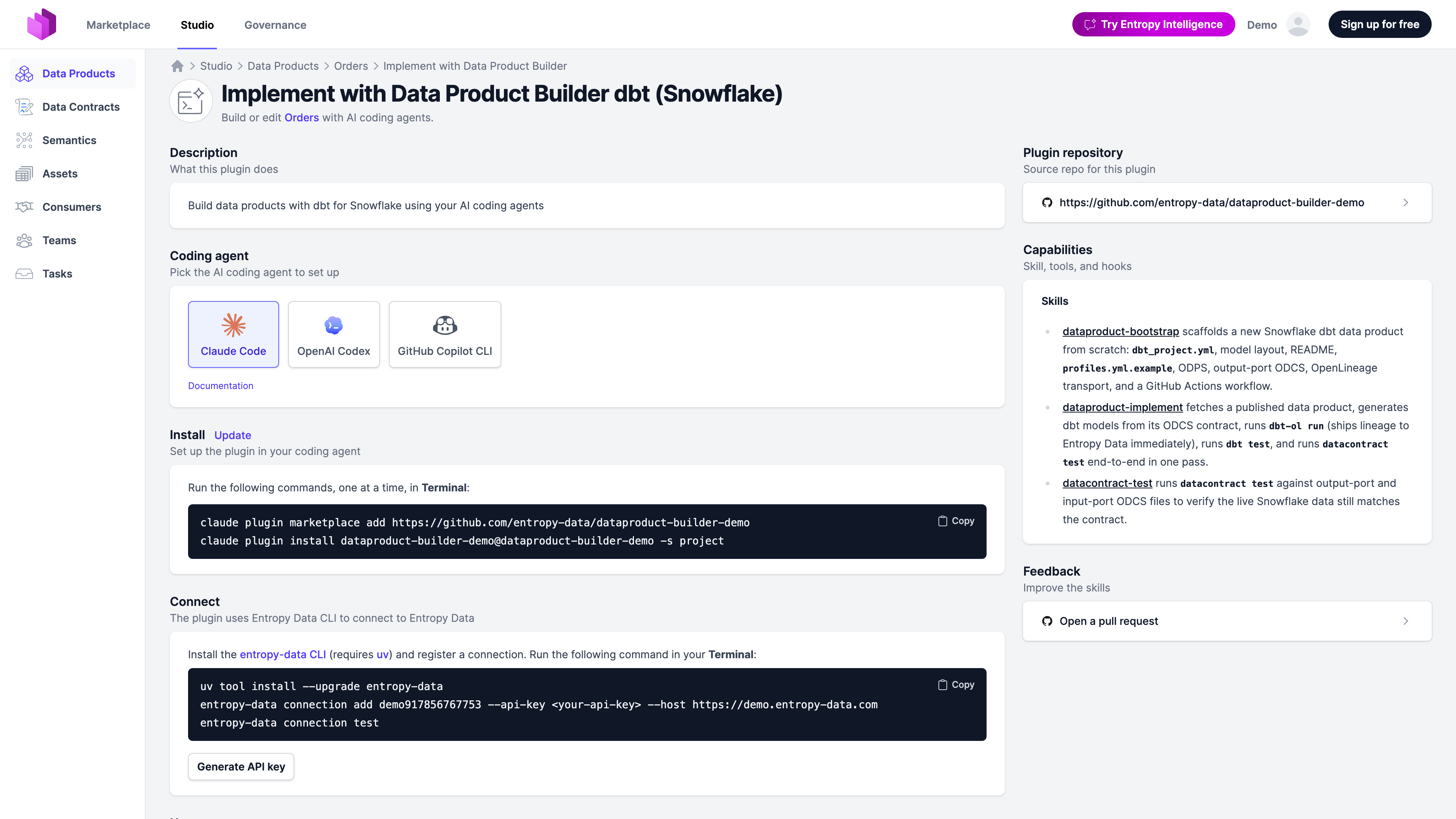
A data product with a matching builder shows an Implement with Data Product Builder button in its header (next to Show in Marketplace). It opens the Data Product Builder page, which lists the configured Data Product Builders matching the data product's archetype, team, and tags. That page is where a team installs a plugin for their coding agent and runs the prompts that implement, evolve, and test the data product.
Matching rules
A builder is shown on a data product when all of these are true:
- The builder's data product types filter is empty, or contains the data product's archetype.
- The builder's teams filter is empty, or contains the data product's owning team or any ancestor team in the hierarchy.
- The builder's tags filter is empty, or shares at least one tag with the data product.
If multiple builders match, the page shows each on its own card and the user picks one. Typical setups end up with one builder per data product because the filters narrow by platform (platform/snowflake) or by archetype.
Install card
Each matching builder renders an install card with one tab per supported coding agent. The commands include the plugin repository URL configured on the builder and the plugin slug derived from it.
For agents not in the list (Cursor, Aider, plain Claude), the skills work as plain Markdown — point the agent at the cloned plugin directory or copy the skills/ directory into the path the agent expects.
Connection
Plugins authenticate against Entropy Data with an API key. The Data Product Builder page includes a Connect card that generates a personal access token in place:
- Click Generate API key. The key is shown once.
- Copy the displayed
entropy-data connection addcommand. It includes the host and the new key. - Run it locally. The plugin's skills pick up the connection automatically through the entropy-data CLI.
The generated key is user-scoped — it acts on behalf of the user who generated it. For CI workflows, use a team-scoped or organization-scoped key from Organization Settings → API Keys and store it as a repository secret. See Authentication.
Run usage instructions
Below the install card, the page renders the configured usage instructions for this data product. Markdown code blocks become copy-pastable prompts. Variables in the instructions are substituted with values from the data product:
| Variable | Example value |
|---|---|
{{dataProductId}} | orders-aggregate |
{{dataProductName}} | Orders (aggregate) |
{{dataProductUrl}} | https://app.entropy-data.com/acme/dataproducts/orders-aggregate |
If the builder defines status-specific instructions, the page shows the instructions for the data product's current status and a small label identifying which status the instructions apply to. For example, a draft data product sees the bootstrap and contract-drafting prompts; once the data product transitions to active, the page swaps in the prompts for evolving and testing live data.
Feedback
Below the usage instructions, a Feedback section links to the plugin's GitHub repository when one is configured on the builder. This is the entry point for users to:
- Report bugs or unclear instructions.
- Open pull requests against the plugin templates or skills.
- See the open issues and roadmap.
For forked plugins, point the builder's repository URL at the fork so the Feedback link reaches the team that maintains it.
Typical flow
A typical interaction on the Data Product Builder page:
-
The user generates an API key and registers the entropy-data CLI connection.
-
They install the plugin in their coding agent of choice.
-
They run the bootstrap prompt:
Bootstrap a dbt project for the data product orders-aggregate. Implement models for the output ports to fulfill the data contracts.The agent scaffolds the dbt project, generates models from the linked data contracts, and writes a GitHub Actions workflow.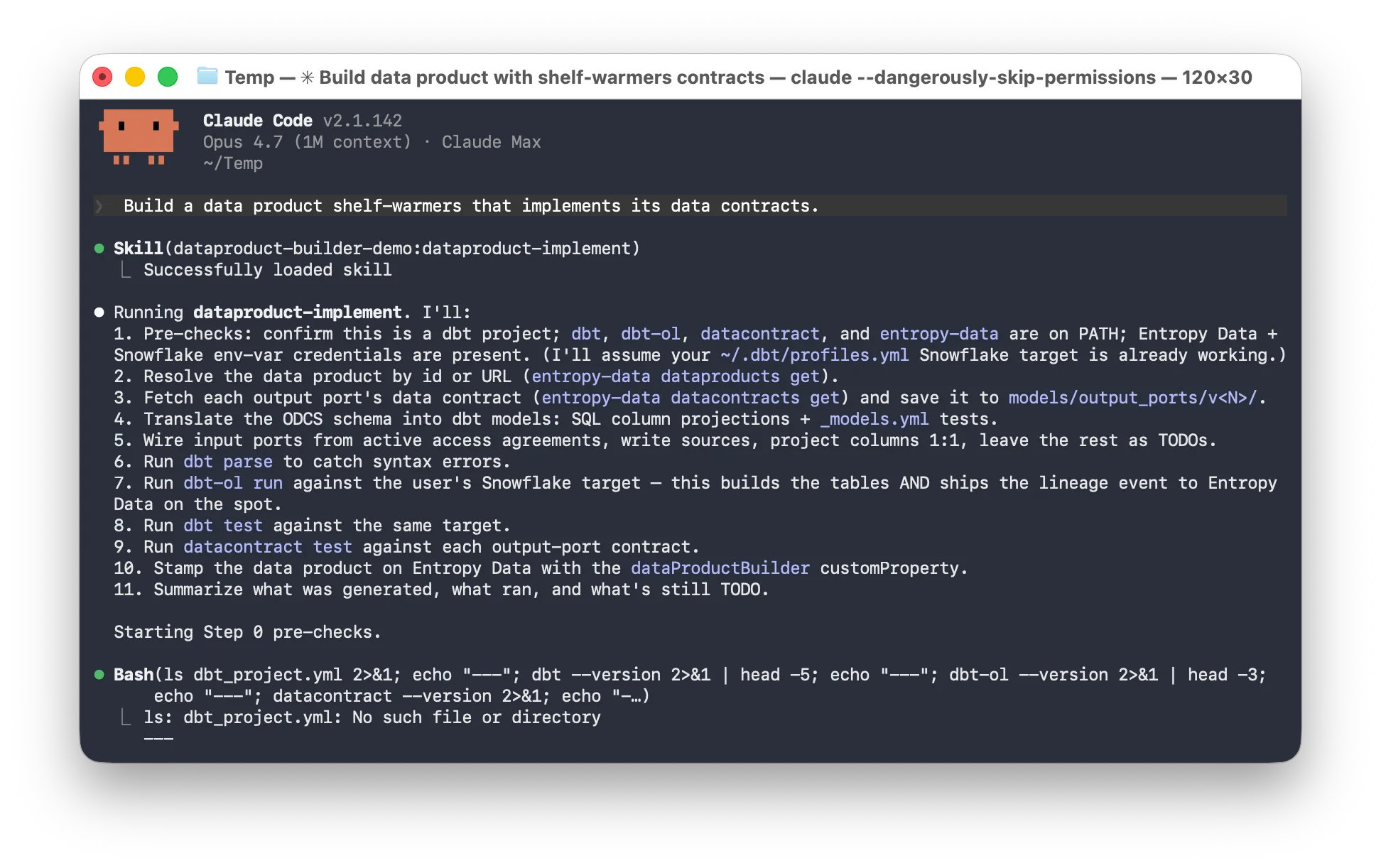
-
They review and commit. The CI workflow runs
datacontract teston PRs and publishes ODPS, ODCS, and OpenLineage events on merge to main. -
After release, the data product's status moves to
active. The page now shows the evolve/test prompts. The team uses those for ongoing changes — adding columns, fixing failing contract tests, uploading example data.
Permissions
The Data Product Builder is only available in the Studio.